As we've seen in the last two sampling tutorials, there
are a variety of objects for accessing data from an MSP buffer~
object. This tutorial looks at another one which is specialized for
working with looping sounds: groove~.
Playing samples with groove~
The groove~ object is one of the most versatile
objects for playing sound from a buffer~. You can
specify the buffer~ to read, the starting point,
the playback speed (either forward or backward), and
start and end points for a repeating loop within the
sample. As with other objects that read from a buffer~,
groove~ accesses the buffer~ remotely,
without patch cords, by sharing its name.
Take a look at groove~ object in the tutorial patcher.
The groove~ object has three inlets which take both
signals and standard Max messages. The left-hand inlet
interprets a signal as its playback speed, and a Max
floating-point numeric message as its playback position.
This allows for event-level control of the playback point (to
jump to an area of the sample) as well as a time-varying signal
controlling the playback rate of the sound. The second and
third inlets allow you to specify start and end points in the
buffer~ to be used as loops.
The sig~ object is an MSP object that outputs a constant
signal based on a floating-point numeric input. This signal
drives the playback speed of the groove~. A signal
of 1 causes normal-speed forward playback; a signal
of 0.5 halves the speed (and drops the pitch of the
sample by an octave); a signal of -2 plays the sample
at double-speed in reverse, and so on. While our tutorial
uses constant-value signals for playback speed (supplied
by the sig~ object), there is no reason why we couldn't
use a line~, cycle~ or other MSP object as a
control signal for the speed of the playback.
The groove~ object also understands a number of
messages in its left inlet to control its behavior. The
message loop 1 turns looping on, which is to say
that when the groove~ object reaches the end of the
sample (or the time specified in the third inlet) it will
return instantly to the beginning of the sample (or the point
specified in the second inlet). In addition, you can change
which buffer~ the groove~ object accesses as its
sample memory at any time by sending the message set
followed by the name of a valid buffer~ object --- in fact,
you can do this with any buffer~-accessing MSP object,
including index~ and play~. In the tutorial patcher,
a umenu object is loaded with the names of the three buffer~
objects we've got in our patcher.
Play some loops
Turn on the audio with the toggle object and adjust the output
volume of the patch using the floating-point number box on the
right of the tutorial (labeled Amplitude). Click on the different
circles in the preset object to play the samples in different ways.
The first preset just functions as an ‘Off’ button. The next three presets
play the three buffer~ objects at normal speed without looping.
The rest of the presets demonstrate a variety of sound possibilities using
different playback speeds on different excerpts of the buffered files, with
or without looping.
You may want to experiment with your own settings by changing the user
interface objects directly.
Technical detail: In traditional sampler design, the system that
plays back the samples is very similar in operation to a groove~ object.
Typically (for instrumental samples that are meant to loop) the
sampler contains a handful of recorded samples of a few seconds
duration, each of which is bound to a specific root key,
a note value at which it plays normally. Note values without samples
play the nearest note that has a sample assigned to it either slightly
fast or slightly slow by adjusting its playback rate. For notes that are
meant to sustain (e.g. violins or synthesizer pads), the sample has
metadata stored with it setting loop points within the sample which
the synthesizer loops inside during sustained notes. Upon releasing the
note, the sample plays out to the end.
If you want to create smooth undetectable loops with groove~,
you can use the loopinterp message to enable crossfades between
the end of a loop and the beginning of the next pass through the loop
to smooth out the transition back to the start point (see the groove~
Object reference page
for more information on this message). If the buffer~
contains an AIFF file that has its own loop points - points established
in a separate audio editing program - there is a way to use those loop
points to set the loop points of groove~.
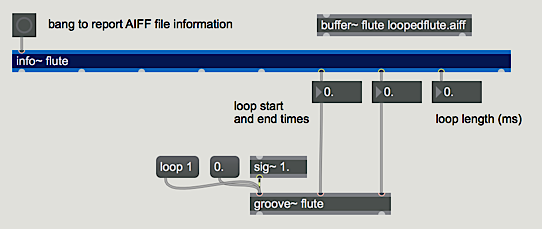
The info~ object can report the loop points of an AIFF file
contained in a buffer~, and you can send those loop start and
end times directly into groove~. You can also use the the info~
object to find out the length (in milliseconds) of any file you load into a buffer.
Using info~ to get loop point information from an AIFF file
Summary
The groove~ object is the most versatile way to play sound
from a buffer~. You can specify the buffer~ to read, the
starting point, the playback speed (either forward or backward), and
starting and ending points for a repeating loop within the sample. If
the buffer~ contains an AIFF file that has its own pre-established
loop points, you can use the info~ object to get those loop times
and send them to groove~. The playback speed of groove~ is
determined by the value of the signal coming in its left inlet. You can
set the current buffer position of groove~ by sending a float
time value in the left inlet.
Store audio samplesVariable-rate looping sample playbackInformation about a buffer~Constant signal of a number