In this tutorial we'll look at different ways to route MSP audio
connections, as well as review sending messages remotely within
Max with a focus on how this can be useful in signal network
design. Along the way we'll learn about how gain can be expressed
in decibels and how the phasor~ object works.
Remote signal connections: send~ and receive~
The patch cords that connect MSP objects look different from normal
patch cords because they actually do something different. They describe
the order of calculations in a signal network. These connected objects
will be used to calculate a whole block of samples for the next portion
of sound output by your computer.
Max objects can communicate remotely without patch cords by using the
send and receive objects (and some similar objects such
as value and pv). You can also use semicolons in message boxes
to transmit values to receive objects by their name. You can transmit
MSP signals remotely as well. Rather than using normal send
and receive objects, however, two MSP objects exist specifically
for remote transmission of signals: send~ and receive~.
The two objects send~ and receive~ work very similarly
to send and receive, but are only for use with MSP
signals. Max will allow you to connect normal patch cords to send~
and receive~, but only signals will get passed through send~ to
the corresponding receive~.
Similar to how the names of send and receive can be shortened
to s and r,
the names of send~ and receive~ can be shortened to
s~ and r~.
There are a few important differences between the Max
objects send and receive and the MSP objects send~
and receive~.
A Max message can be sent to a receive object from several
other objects besides send, such as float, forward,
grab, if, int, and message; receive~
can receive a signal only from a send~ object that shares the same name.
If receive has no typed-in argument, it has an inlet for
receiving set messages to set or change its name; receive~ also
has an inlet for that purpose, but is nevertheless required to have a typed-in
argument to give it an initial destination name.
The Max send object, once created, cannot change destinations
(the Max forward object does this). The MSP send~ can
change destinations with a set message.
Examples of each of these usages can be seen in the tutorial patch.
Routing a signal: gate~
The MSP object gate~ works very similarly to the Max gate object.
Just as gate is used to direct messages to one of several destinations,
or to shut the flow of messages off entirely, gate~ directs a signal to
different places, or shuts it off from the rest of the signal network.
In the example patch, the gate~ objects are used to route signals
to the left audio output, the right audio output, both, or neither,
according to what number is received from the umenu object.
It is worth noting that changing the chosen outlet of a gate~ while
an audio signal is playing through it can cause an audible click because
the signal shifts abruptly from one outlet to another. To avoid this,
you should generally design your patch in such a way that the gate~ object's
outlet will only be changed when the audio signal going through it is at zero
or when audio is off. (No such precaution was taken in this tutorial patch.)
The closed outlets of gate~ do not stop sending signals, they continue to send a signal with a constant value of 0. If the idea of a constant signal seems strange to you, think of it as 44,100 0s a second.
Wave interference
It's a fundamental physical fact that when we add together two sinusoidal
waves with different frequencies we create interference between
the two waves. Since they have different frequencies, they will usually
not be exactly in phase with each other; at some times they will be
sufficiently in phase that they add together constructively, but at other
times they add together destructively, canceling each other out to some
extent. They only arrive precisely in phase with each other at a rate
equal to the difference in their frequencies. For example, a sinusoid at
1000 Hz and another at 1002 Hz come into phase exactly 2 times per second.
In this case, they are sufficiently close in frequency that we don't hear
them as two separate tones. Instead, we hear their recurring pattern of
constructive and destructive interference as beats occurring at a
sub-audio rate of 2 Hz, a rate known as the difference frequency
or beat frequency. (Interestingly, we hear the two waves as a single
tone with a sub-audio beat frequency of 2 Hz and an audio frequency of 1001 Hz.)
When the example patch is opened, a loadbang object sends initial
frequency values to the two cycle~ objects in the patch, setting
them to 1000 Hz and 1002 Hz; so we expect that these two tones sounded
together will cause a beat frequency of 2 Hz. It also sends initial values
to the umenu objects which in turn set the gate~ objects,
directing one tone to the left audio output and one to the right audio
output. A fourth value called Depth is also set. All of this is
accomplished by using a message box to remotely set values picked
up by Max receive objects in the patcher.
In the tutorial patcher, click on ezdac~ to turn audio on, then
use the slider marked Volume to adjust the loudness of the
sound to a comfortable level. Note that the beats occur exactly twice per
second. Try changing the frequency of Oscillator B to various other
numbers close to 1000 (using the number box labeled frequency), and
note the effect. As the difference frequency approaches an audio rate (say,
in the range of 20-30 Hz) you can no longer distinguish individual beats, and
the effect becomes more of a timbral change. Increase the difference still further,
and you begin to hear two distinct frequencies.
Philosophical tangent: It can be shown mathematically and
empirically that when two sinusoidal tones are added, their
interference pattern recurs at a rate equal to the difference
in their frequencies. This apparently explains why we hear beats;
the amplitude demonstrably varies at the difference rate. However,
if you listen to this patch through headphones so that the two tones
never have an opportunity to interfere mathematically, electrically,
or in the air, you still hear the beats! This phenomenon, known as binaural beating
is caused by ‘interference’ occurring in the nervous system. Although such
interference is of a very different physical nature than the interference
of sound waves in the air, we experience it as similar. An experiment like
this demonstrates that our auditory system actively shapes the world we hear.
Amplitude and relative amplitude
The slider marked ‘Volume’ has been set to have a range of
101 values, from 0 to 100, which makes it easy to
convert its output to a float ranging from 0 to 1 just
by dividing by 100. (The decimal point in argument typed into the / object
ensures a float division.)
The *~ objects use the specified amplitude value to scale
the audio signal before it goes to the ezdac~. If both oscillators
get sent to the same inlet of ezdac~, their combined amplitude
will be 2. Therefore, it is prudent to keep the amplitude scaling
factor at or below 0.5. For that reason, the amplitude value which
the user thinks of as being between 0 and 1 is actually kept between
0 and 0.5 by the *0.5 object below the slider.
Because of the wide range of possible audible amplitudes, it may be
more meaningful in some cases to display volume numerically in terms
of the logarithmic scale of decibels (dB), rather than in
terms of absolute amplitude. The decibel scale refers to relative
amplitude, i.e. the amplitude of a signal relative to some reference
amplitude. The formula for calculating amplitude in decibels is:
dB = 20(log10(A/Aref))
where A is the amplitude being measured and Aref is
a fixed reference amplitude.
The AtodB object uses a reference amplitude of 1 in the formula shown
above, and converts the amplitude to dB. If you turn off the audio
(for safety) and raise the slider to its maximum value (ensuring
an output of 1), you will see the decibel output of
the AtodB object read 0 (i.e. unity gain). Each
halving of the amplitude in the slider is approximately equal
to a 6 dB reduction in decibels.
Constant signal value: sig~
Most signal networks require some changing values (such as an
amplitude envelope to vary the amplitude over time) and some
constant values (such as a frequency value to keep an oscillator
at a steady pitch). In general, one provides a constant value to
an MSP object in the form of a float message, as we have
done in these examples when sending a frequency in the left inlet of
a cycle~ object.
However, there are some cases when one wants to combine both constant
and changing values in the same inlet of an MSP object. Inlets that
accept either a float or a signal (such as the left
inlet of cycle~) do not successfully combine the two. In general,
MSP objects will ignore a floating-point value in deference to a
signal input. As a result, it's necessary to have an object that outputs
a constant value as a signal if you need to combine a fixed and changing
value in an MSP signal chain.
One way to combine a numerical Max message (an int or a float)
with a signal is to convert the number into a steady signal with the sig~
object. The output of sig~ is a signal with a constant value, determined
by the number received in its inlet.
In the example patch, Oscillator B combines a constant frequency
(supplied as a float to sig~) with a varying frequency
offset (signal values coming in from a receive~ object
called FreqB+). The sum of these signals
will be the frequency of the oscillator at any given instant.
Changing the phase of a waveform: phasor~
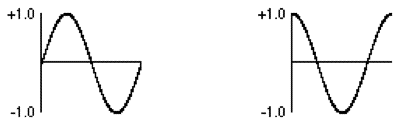
For the most part, the phase offset of an isolated audio wave doesn't
have a substantial effect perceptually. For example, a sine wave in
the audio range sounds exactly like a cosine wave, even though there
is a theoretical phase difference of a quarter cycle. For that reason,
we have not been concerned with the rightmost phase inlet of the cycle~
object until now.
A sine wave offset by a quarter cycle is a cosine wave
However, there are some very useful reasons to control the phase offset
of a wave. For example, by leaving the frequency of cycle~
at 0, and continuously increasing its phase offset, you can
change its instantaneous value (just as if it had a positive frequency).
The phase offset of a sinusoid is usually referred to in degrees (a full
cycle is 360°) or radians (a full cycle is 2*π radians in length).
In the cycle~ object, phase is referred to in wave cycles; so an
offset of π radians is 1/2 of a cycle, or 0.5. In other words,
as the phase varies from 0 to 2π radians, it varies from 0 to 1 wave
cycles. This way of describing the phase is handy since it allows us to use the
common signal range from 0 to 1.
So, if we vary the phase offset of a stationary (0 Hz) cycle~ object
continuously from 0 to 1 over the course of one second, the resulting
output is a cosine wave with a frequency of 1 Hz.
The phasor~ object is a very useful MSP signal generator that
simply outputs a ramp from 0 to 1 at a given frequency.
As with the cycle~ object, it's frequency can be set by an
argument to the object, a floating-point value in its left inlet, or
a signal. Later in our tutorial, we'll hear what it sounds like (it's
a sawtooth wave, and not an especially pleasant one), but for now let's
use it for changing the phase (hence phasor~ of
the cycle~ object in the lower-left of the tutorial patcher.
Click on the message box above the line~ objects in the lower-left
portion of the tutorial patch. You should hear one of the sine waves begin
to slowly drop and rise in pitch, causing the beating between the two sines
connected to the audio output to change over time.
The cycle~ in the bottom-left of the patcher is modulating
the cycle~ object in the upper-right by adding a value to its current
(constant) frequency, set by the sig~ object.
Historical note: In the long ago days of MusicN synthesis, the phasor was the only unit generator that could produce a continuous tone. A phasor had to be connected to a wavetable to generate other waveforms. In MSP, cycle~, triangle~ and the other oscillators have internal phasors, but the phasor concept is useful for so many operations we have provided the stand alone version.
Receiving a different signal
The remaining portion of the tutorial patch exists simply to demonstrate the
use of the set message to the receive~ object. This is another
way to alter the signal flow in a network. As with the send~ object,
you can change the name of the receive~ object with a set message,
instructing it to get its input from a different send~ object (or objects).
Click on the message box containing set sawtooth. Both of the
connected receive~ objects now get their signal from the phasor~
object in the lower-right corner of the window. Click on the message boxes
containing set outL and set outR messages to receive the sinusoidal
tones once again. With the sawtooth destination selected, change the frequency
of the phasor~ in the lower-right of the patcher. Notice that when set to
an audible frequency, the ramp of the phasor~ object causes it to sound like
an oscillator rich in harmonics. This is a sawtooth wave, a common waveform
used in synthesizer design. Because the phasor~ object only ramps from 0
to 1 (and not -1 to 1), using a phasor~ as an audio
source isn't the best way to get this sound: the MSP saw~ wave will do
the trick instead.
Summary
It is possible to make signal connections without patch cords by using the
MSP objects send~ and receive~, which are similar to the Max
objects send and receive. The set message can be used
to change the name of a send~ or receive~ object, thus
switching how signals are routed. Signal flow can be routed to different
destinations within a patcher, or shut off entirely, using the gate~
object, which is the MSP equivalent of the Max object gate.
The cycle~ object can be used not only for periodic audio waves,
but also for sub-audio control functions: you can read through the waveform
of a cycle~ object at any rate you wish by keeping its frequency at
0 Hz and changing its phase continuously from 0 to 1.
The phasor~ object is appropriate for changing the phase of
a cycle~ waveform in this way; you could also use a line~ object
to create a ramp that goes through the object's wavetable.
The sig~ object converts a number to a constant signal; it receives a number
in its inlet and sends out a signal of that value. This is useful for combining
constant values with varying signals. Mixing together tones with slightly
different frequencies creates interference between waves, which can create
beats and other timbral effects.
Route a signal to one of several outletsReceive signals without patch cords Transmit signals without patch cordsConstant signal of a numberSawtooth wave generator