MSP Tutorials
Basics Tutorial 2: Adjustable Oscillator
Introduction
In this tutorial we'll look at how to control the amplitude of
signals we work with in MSP. In addition, we'll look at an object
that helps us generate signal ramps from Max messages that we can
use to smoothly control the parameters of MSP objects.
Amplifier: *~
As we saw in our last tutorial, the dac~ object represents the
final output of our audio signal network; anything you want to
come out of your speakers (or into your headphones) needs to eventually
find its way to a dac~ object. Now, any signal you want to
listen to - a signal you send to dac~ - must be in the amplitude
range from -1.0 to +1.0. Any values exceeding those bounds will be
clipped by the dac~ (i.e. sharply limited to 1 or -1). This
will cause (in most cases pretty objectionable) distortion of the sound.
Most MSP objects that generate sound do so in the range of -1.0 to 1.0:
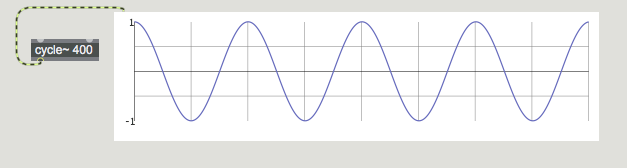 The default output of cycle~ has amplitude of 1
As a result, learning to adjust signal amplitude is important so that we
have control over the volume that we're sending to the output.
To control the level of a signal you simply multiply each sample by a scaling
factor. For example, to halve the amplitude of a signal you simply multiply
it by 0.5. (Although it would be mathematically equivalent to divide the
amplitude of the signal by 2, multiplication is a more efficient computation
procedure than division.)
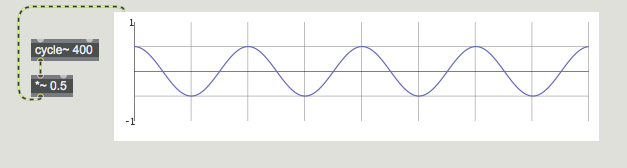 Amplitude adjusted by multiplication
The *~ object in MSP multiplies the signal in its left inlet by
whatever comes into the right. This can be a constant number or a signal.
If we wish to change the amplitude of a signal continuously over time, we
can supply a changing signal in the right inlet of *~. By continuously
changing the value in the right inlet of *~, we can fade the sound in
or out, create a crescendo or diminuendo effect, etc.
In the tutorial patcher, start the audio by clicking the message box
labeled start. You won't hear anything yet, because the *~
objects in the patch are multiplying their input by 0, resulting in
silence. In the patcher area labeled 1, type the number 300
into the floating-point number box labeled Frequency. In
the number box labeled Amplitude, type 0.2. You
should hear a 300 Hz sine wave playing softly out of your audio device.
Click in the Amplitude number box to the right of
the decimal point and drag the value up and down. You should hear the sine
wave fade in and out in volume, just as it did in the last tutorial when
we manipulated the gain~ slider. However, you may hear something
less pleasant as you change the volume, namely a series of clicks in the
sound. This is called zipper noise, and results from sudden drastic
changes in amplitude which cause discontinuities in the signal:
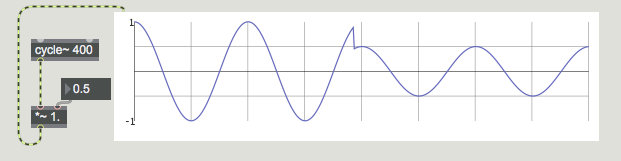 Instantaneous change of amplitude causes a noisy distortion of the
signal
Instantaneous change of amplitude causes a noisy distortion of the
signal
Before we address that problem, set the volume in the number box
to a comfortable amplitude, and drag in the number box
labeled Frequency. As you hear the oscillator's pitch rise and
fall, you may also hear a form of zipper noise do to the sudden changes
in frequency. If we're going to be continuously controlling either of
these parameters (the frequency of the cycle~ object or the
amplitude output by the *~ object), we may want to modify those
parameters using a signal instead of sending Max messages.
Line segment generator: line~
Take a look at the right-hand piece of patcher logic in the tutorial
(labeled 2). If, instead of an instantaneous change of amplitude
(which can cause an objectionable distortion of the signal), we supply
a signal in the right inlet of the *~ object that changes
over the course of 500 milliseconds, we interpolate between the starting
amplitude and the target amplitude with each sample, creating a smooth
amplitude change.
The line~ object functions similarly to the Max object line.
In its left inlet it receives a target value and a time (in ms) to reach
that target. The line~ object calculates the proper intermediate value
for each sample in order to change in a straight line from its current
value to the target value.
Turn down the volume on the left-hand audio circuit in the tutorial patcher
by typing 0 into the Amplitude number box. In the
right-hand part of the tutorial patcher, set the Frequency of
the cycle~ object to 300. Then, clicking in the number box
labeled Amplitude, set the volume to 0.3. Rather than the sound
immediately coming on as before, you should hear the sine wave fade in over
half a second. If you drag within the number box, you should feel that
the volume is chasing your actions, smoothly interpolating between
values as if you were slowly manipulating a volume knob on an amplifier.
The second value of the value/time pair we send to the line~ object
determines the smoothness of the transition. If we feel that the volume control
isn't quite responsive enough, it's easily changed by playing with the
transition value.
Unlock the patcher and change the message box connected to the line~
object controlling the Amplitude. If you'd like a quicker fade, try
changing it to read $1 50. When you lock the patch and manipulate
the number box again, you should feel that the volume is changing much
more responsively to your commands.
Technical detail: Any change in the over-all amplitude of a signal introduces
some amount of distortion during the time when the amplitude is changing. (The shape
of the waveform is actually changed during that time, compared with the original
signal.) Whether this distortion is objectionable depends on how sudden the
change is, how great the change in amplitude is, and how complex the original
signal is. A small amount of such distortion introduced into an already complex
signal may go largely unnoticed by the listener. Conversely, even a slight
distortion of a very pure original signal will add partials to the tone, thus
changing its timbre.
Adjustable oscillator
The patcher logic on the right uses a combination of *~ and line~ to
make an adjustable amplifier for scaling the amplitude of the oscillator. However,
the line~ object can output signals that can be used to control a lot of
things... not just volume.
With the volume on the right-hand patcher logic raised, adjust the number box
labeled Frequency. Try typing in a value distant from the current one, e.g.
make the frequency jump from 300 to 1000 Hz. Notice that, unlike in the left-hand
example, the frequency smoothly transitions over 500 milliseconds.
As with the amplitude control, the line~ object is sending a signal
that smoothly transitions based on value/time commands sent to it by Max
messages. By controlling the frequency of the oscillator in this way,
we've created a gliding effect referred to in synthesizer design (and
instrument performance) as portamento. If you think the transition
is too slow for your tastes, unlock the patcher and change the message
box so that you have a shorter transition time. See how short you can make it
so that the portamento disappears but you still avoid hearing any clicks in
during a frequency change.
Summary
Multiplying each sample of an audio signal by some number other than 1
changes its amplitude; therefore the *~ object is effectively
an amplifier. A sudden drastic change of amplitude can cause a click,
so a more gradual fade of amplitude - by controlling the amplitude with
another signal - is usually advisable. The segment signal
generator line~ is comparable to the Max object line
and is appropriate for providing a linearly changing value to the
signal network. The combination of line~ and *~ can
be used to make an envelope for controlling the over-all
amplitude of a signal. In addition, a line~ object can be used
to smoothly control the parameters of nearly any MSP object, such as
the frequency of a cycle~ oscillator.
Table lookup oscillator
Audio output and on/off
Linear ramp generator