MSP objects are for processing digital audio (i.e., sound) to be played
by your computer. MSP objects look just like Max objects, have inlets
and outlets just like Max objects, and are connected together with
patch cords just like Max objects. They are created the same way as
Max objects - just by placing an object box in the Patcher window
and typing in the desired name - and they co-exist quite happily with
Max objects in the same Patcher window.
...but they're a little different.
A patcher containing interconnected MSP objects works a little differently
from a patcher containing standard Max objects.
One way to think of the difference is just to think of MSP objects as
working much faster than ordinary Max objects. Since MSP objects need
to produce enough numbers to generate a high fidelity audio signal
(commonly 44,100 numbers per second), they must work faster than the
scheduler used by standard Max objects, which typically runs around a
thousand times per second.
Here's another helpful way to think of the difference. Think of a patch
of MSP objects not as a program in which events occur at specific
instants (as in a standard Max patch), but rather as a description
of an instrument design - a synthesizer, sampler, or effect processor.
It's like a mathematical formula, with each object constantly providing
numerical values to the object(s) connected to its outlet. At any
given instant in time, this formula has a result, which is the
instantaneous amplitude of the audio signal. This is why we frequently
refer to an ensemble of inter-connected MSP objects as a signal network.
So, whereas a patch made up of standard Max objects sits idle and does
nothing until something occurs (a mouse click, an incoming MIDI
message, the clock firing on a metro object, etc.) causing
one object to send a message to another object, a signal network of
MSP objects, by contrast, is always active (from the time it's turned
on to the time it's turned off), with all its objects constantly
communicating to calculate the appropriate amplitude for the sound at
that instant.
...so they look a little different
The names of all MSP objects end with the tilde character (~).
This character, which looks like a cycle of a sine wave, just serves
as an indicator to help you distinguish MSP objects from other
Max objects.
The patch cords between MSP objects have stripes. This helps you
distinguish the MSP signal network from the rest of the Max patch.
MSP objects are connected by striped patch cords
Take a look at the tutorial patcher. You'll see that we have six
items of our patcher's canvas. Three of them should be familiar
to you: we've got a Max comment box ("warning:loud") and
two message boxes labelled start and stop.
The bulk of the patcher logic consists of three objects we've
never seen before: a cycle~ object, a dac~ object,
and something that looks suspiciously like a slider object
but is actually a gain~ object. Let's look at these objects
in turn, starting with the dac~ at the bottom of the patcher
and returning from there to the top of the chain.
Digital-to-analog converter: dac~
The digital-to-analog converter (DAC) is the part of your computer
that translates the stream of discrete numbers in a digital audio signal
into a continuous fluctuating voltage which will drive your loudspeaker.
Once you have calculated a digital signal to make a computer-generated
sound, you must send the numbers to the DAC. So, MSP has an object
called dac~. This object is generally the terminal object in
any signal network, and is required for any signals generated by MSP
to make it out of your computer as sound. The dac~ object receives
the signals you wish to hear in its inlets. It can have as many inlets
as there are available channels of audio playback on your computer, though
it defaults to a stereo configuration talking to the first two channels
of your audio hardware - this is why there are two inlets on the dac~
in our patcher. If you are using more elaborate audio output hardware,
you can type in arguments to specify other audio channels.
Important!dac~ must be receiving a signal of non-zero
amplitude in order for you to hear anything. dac~ expects to
receive signal values in the range -1.0 to 1.0. Numbers that exceed
that range will cause distortion when the sound is played.
A simple wavetable oscillator: cycle~
The best way to produce a periodic waveform is with cycle~.
This object uses the technique known as ‘wavetable synthesis’. It
reads through a list of 512 values at a specified rate, looping back
to the beginning of the list when it reaches the end. This simulates
a periodically repeating waveform.
You can direct cycle~ to read from a list of values that you
supply (in the form of an audio file), or if you don't supply one,
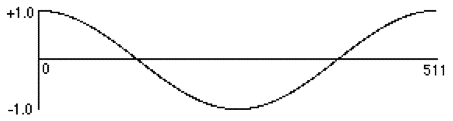
it will read through its own table which represents a cycle of a
cosine wave with an amplitude of 1. We'll show you how to supply
your own waveform in a later tutorial; for now we'll use the cosine
waveform.
Graph of 512 numbers describing one cycle of a cosine wave with amplitude 1
The cycle~ object receives a frequency value (in Hz) in its left
inlet, and it determines on its own how fast it should read through the
list in order to send out a signal with the desired frequency.
Technical detail: To figure out how far to step through the list
for each consecutive sample, cycle~ uses the basic formula
I=ƒL/R
where I is the amount to increment through the list, ƒ
is the signal's frequency, L is the length of the list (512 in
this case), and R is the audio sampling rate. cycle~
is an ‘interpolating oscillator’, which means that if I does
not land exactly on an integer index in the list for a given sample,
the cycle~ object interpolates between the two closest numbers in the list to find the proper output value. Performing interpolation in a wavetable oscillator makes a substantial improvement in audio quality. The cycle~ object uses linear interpolation, while other MSP objects use very high-quality (and more computationally expensive) polynomial interpolation.
The cycle~ object has a default frequency of 0 Hz. So in order
to hear the signal, we need to supply an audible frequency value. This
can be done with a number argument as in the example patch, or by
sending a number in the left inlet, or by connecting another MSP object
to the left inlet. If we listen to the output of this signal with its
frequency set in an audioble range, we should hear a sine wave, the purest
(in terms of spectrum) sound that we can make.
A volume control: gain~
If we were to directly connect our cycle~ object to a dac~
object and start the audio, we could easily damage our speakers or, more
importantly, our ears. MSP objects that generate audio (such as cycle~)
generally do so at a normalized dynamic range of -1 to 1, which the dac~
object will interpret as being the loudest signal possible. To avoid
these dangers, it's important to have an object in-between to control
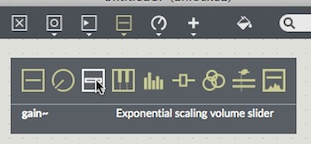
the amplitude of the signal going to our speakers. The gain~
slider performs just such a function:
The gain~ slider in the sliders section of the Object Palette
The gain~ slider multiplies its incoming signal by a
factor based on the position of the slider which, for all but the
uppermost reaches of the object, is a number less than 1. As a result,
the gain~ object almost always attenuates (or turns down)
the volume of what comes in, much like a fader on an analog mixing
desk. The gain~ object is in several ways a graphical version
of a *~ object, which we'll look at in a later tutorial.
It's important to note that the gain~ slider "goes up to 11". In fact it goes above 12, in that the higest step of the slider is 157 compared to the unity gain step of 128. This extreme level multiplies the signal by more than 7, almost guaranteeing distortion.
Starting and stopping signal processing
The MSP audio network is off when Max boots up. It can be turned on with the on/off icon in the lower right corner of any window that contains MSP objects. There is a slider just above this button that controls the level of the window in the output mix, as well as a pair of VU bars that show the signal level. When the window is opened, this slider is at the unity gain point, and can be used to balance the mix, but you should keep in mind that reducing the level with this slider may mask distortion that is caused by excessive levels within the patch.
Audio processing can also be controlled programmatically. The dac~ object is one of five MSP objects (along with adc~, their graphical cousins ezadc~ and ezdac~, and adstatus) that can turn on and off the MSP audio network from within your patcher. It is very common to provide the start message with a loadmess object so that audio begins as soon as the patch is opened.
Important! Sending start or stop to any dac~ or adc~ object enables or disables processing for all open signal networks in all currently open Max patchers. So if you turn on audio in a patcher and hear things you don't expect, a good place to look is under the Window menu of Max; it's possible you have other documents open that are generating audio using MSP. You can use the startwindow message to start processing only in the affected window.
Listening to the Test Tone
The first time you start up Max, it will try to use your computer's
default sound card and driver (CoreAudio on Macintosh or MME on Windows)
for audio input and output. If you have the audio output of your computer
connected to headphones or an amplifier, you should hear the output of
MSP through it. If you don't have an audio cable connected to your
computer, you'll hear the sound through the computer's internal speaker.
In order to get MSP up and running properly, we recommend that you start
the tutorials using your computer's built-in sound hardware. If you
want to use an external audio interface or sound card, please refer to
the Audio Input and Output chapter for details on configuring MSP to
work with audio hardware.
Set your audio amplifier (or amplified speakers) to their minimum
setting, then click on the startmessage in the tutorial
patcher. Click and drag on the gain~ slider until it's set to
somewhere in the middle of its length. Adjust your audio amplifier to
a comfortable setting. Once you're satisfied that the patcher is working,
click on the stop message box to turn off that annoying test tone.
Troubleshooting
If you don't hear any sound coming from your computer when you start
the dac~ in this example and turn up the gain~ slider,
check the level setting on your amplifier or mixer, and check all your
audio connections. Check that the sound output isn't currently muted.
On Macintosh, the sound output level is set using the Sound preferences
in the System Preferences application. On Windows, the sound output
level is set using the Sounds and Audio Devices setup
(Start - Control Panels - Sounds and Audio Devices).
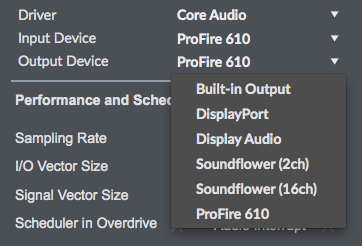
If you are still are not hearing anything, choose Audio Status from
the Options Menu and verify that a valid driver and output are chosens in the
pop-up menus. If one isn't, choose it. (See the Audio I/O tutorial for more information.)
You can always check to see if audio problems originate in your patch or in the audio system by opening the Audiotester patch in the Extras menu. This patch provides a simple audio source as well as displays of any active input. If selecting Oscillator or Pink noise from the signal source menu does not produce a sound, the problem is somewhere in the audio setup.
Summary
A signal network of connected MSP objects describes an audio instrument. The digital-to-analog converter of the instrument is represented by the dac~ object; dac~ must be receiving a signal of non-zero amplitude (in the range -1.0 to 1.0) in order for you to hear anything. The cycle~ object is a wavetable oscillator which reads cyclically through a list of 512 amplitude values, at a rate determined by the supplied frequency value. Signal processing is turned on and off with a button in the patcher window or by by sending a start or stop message to any dac~ or adc~ object.
Because sending a start message to a dac~ turns on audio
in all open Max patches that contain MSP objects, when going through these
tutorials its best to only have them open one at a time. Close the Patcher
window before proceeding to the next chapter.
Table lookup oscillatorExponential scaling volume sliderAudio output and on/offI/O Audio input and output with MSP