The jit.net.send object allows us to send uncompressed matrices over the Internet to a jit.net.recv object in a Max patch on a different computer.
Open the tutorial patch. Note that there are two included patchers, 52jNetworkSend and 52jNetworkReceive. Open them both. (If you like, you can open copies on different computers.)
The jit.net.send and jit.net.recv objects communicate using the TCP protocol. A discussion of the different types of network transmission protocols is beyond the scope of this Tutorial; it's important to note, however, that TCP is a connection-oriented protocol. Before anything can be sent or received the pair of objects must make a connection to one another. Both objects report any change in their connection status out the dump outlet with a connected message, followed by an argument of 1 when connected or 0 when disconnected.
A patch to send Jitter matrices over a computer network using TCP.
To form a connection, the jit.net.recv and jit.net.send objects must be set to link to the same port. We can set the port attribute to any positive integer value, but some of the lower numbers are reserved for commonly used network services such as FTP, web browsing, etc. Watch the Max console for error messages when you change ports—no message means the connection is valid. A port in the range above 1024 and below 10000 will probably be safe. If no port is specified, the default for both objects is 7474.
In addition to port number, the jit.net.send object must know the IP address of the computer running the Max patch containing the jit.net.recv object we'd like to send to. A computer may have more than one IP address – the wireless interface and Ethernet port will have different addresses, for example – and, by default, the jit.net.recv object will listen to all of them for a connection request from a jit.net.send suitor. It is possible to specify which interface to use by sending the object an ip message with the specific IP address of the desired interface as an argument.
If we open the sending and receiving patches on the same computer, the objects may immediately form a connection. The toggle boxes connected to the route objects in each patch will be checked if this is the case. By default the jit.net.send object's ip attribute is set to 127.0.0.1, which is the local loopback address. The jit.net.recv object is listening to all addresses by default, including the local loopback, so a connection should be made if the two patches are on the same computer. If you're running the patches on different computers, you can use the mxj net.local object to figure out what IP address the jit.net.send object should be trying to connect with. Note that one can specify an IP address with the ip attribute, or alternatively one can specify a hostname with the host attribute and jit.net.send will attempt to use the Domain Name Service (DNS) to resolve the hostname to an IP address.
A patch to receive and display Jitter matrices sent over a computer network.
If you can't get your objects to connect to one another, and you're sure you've got the IP address and port correct, make sure a software firewall on any computer isn't preventing communication on the port we've selected (7474 in these tutorial patches). On a computer running Windows XP, the controls for the software firewall can be found in the Control Panel:Windows Firewall:Advanced tab, where double clicking any of the network connections will bring up an Advanced Settings window that allows you to define new "services". On an OS X machine the controls for the software firewall can be found in System Preferences:Security & privacy, where you can set Max.app as a trusted application. If you are connecting two computers together through one or more routers, it's possible that they have filters in place that are rejecting the packets.
Turn on the toggle box connected to the qmetro in the NetworkSend section of the patch.
In the sending patch, a jit.movie object is sending matrices to a jit.net.send object. Note that the qmetro driving the movie playback triggers the movie frame and then sends the jit.net.send object a getlatency message. This causes a one-way latency estimate to be output from the dump outlet. We can use this estimate of the transmission latency to synchronize events on the two computers, for instance by delaying the processing or display of a matrix on a local computer by the amount of the estimate, at which point the receiving computer should be ready to process the matrix it has received.
Latency is influenced by two factors: the direct transmission time between the two computers, and the amount of data being sent. The more data that is sent, the longer the time it takes to move all the data across the network. Obviously the speed of the computer's network interface and all routing hardware is key in this respect – the transmission can only be as fast as the weakest link in the chain. One technique we might consider using to reduce latency is to transmit matrices using either of the grgb or uyvy compressed color spaces that are discussed in Tutorial 49.
In addition to sending matrices, any normal Max message input into the right inlet of jit.net.send will come out the middle outlet of the connected jit.net.recv object. The input order of messages and matrices will be preserved in the receiving patch. In this example, the patcher named dim changes contains a slower qmetro that changes the dimensionality of the movie every half second. These new dimensions are input into the right inlet of the jit.net.send object. When the two integers come out the second outlet of the jit.net.recv object they are used as the arguments of the size message to resize the jit.pwindow object.
The matrices in this tutorial patch are of type char, but jit.net.send and jit.net.recv can handle matrices of any type. For an example that uses float32 matrices, please refer to audio-over-network in the jit-examples/audio folder.
Summary
Using the jit.net.send and jit.net.recv objects, you can send uncompressed Jitter matrices to another computer running Max. You specify a port for the two machines to communicate on, as well as an ip address for the sending machine to use when connecting to the receiving machine.
Receive matrices from ajit.net.send object via TCP/IPSend matrices to ajit.net.recv object via TCP/IPPlay or edit a movie
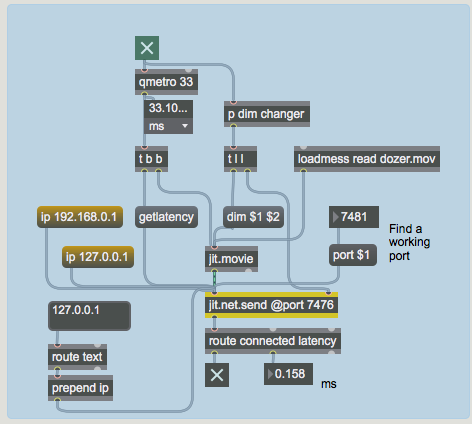 A patch to send Jitter matrices over a computer network using TCP.
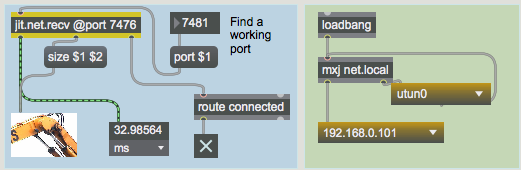 A patch to receive and display Jitter matrices sent over a computer network.