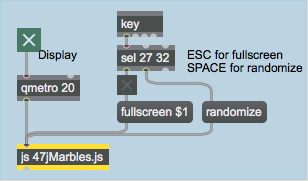
 Our Tutorial patcher: not much to look at.
In the last two tutorials, we've looked at some of the possibilities and advantages of using Jitter objects and matrices within JavaScript code. In this tutorial we'll encapsulate an entire Jitter OpenGL patch inside of JavaScript, using many of the techniques we've already seen. Most importantly, however, we'll learn how to "listen" to the output of Jitter objects that have been encapsulated in JavaScript in order to design functions that respond interactively to these objects.
A number of Jitter objects (such as
This Tutorial assumes you've looked at the earlier JavaScript tutorials, as well as the first OpenGL tutorial Tutorial 30: Drawing 3D Text.
The first thing we notice about this tutorial patch is that there is very little in it, in terms of Max objects. Virtually all the work done in the patcher is accomplished inside the
Our Tutorial patcher: not much to look at.Our
Our
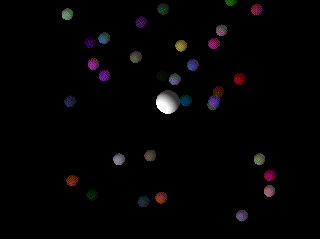 Pushing the spheres around.
Our JavaScript code creates all the JitterObject objects we need to render our scene: a
var OBJECT_COUNT = 32; // number of little spheres
This line declares a variable (OBJECT_COUNT) that determines the number of smaller spheres in our scene.
// create a [jit.window] object for our display
// (this is the object we'll listen to):
var mywindow = new JitterObject("jit.window","ListenWindow");
// turn off depth testing... we're using blending instead:
mywindow.depthbuffer = 0;
// turn ON idlemousing... we want to listen for it:
mywindow.idlemouse = 1;
Next, we create a
// create a [jit.gl.render] object for drawing into our window:
var myrender = new JitterObject("jit.gl.render","ListenWindow");
// use a 2-dimensional projection:
myrender.ortho = 2;
// set background to black with full erase opacity (no trails):
myrender.erase_color = [0,0,0,1];
Our
// create a [jit.gl.gridshape] object for use to control with the mouse
var mywidget = new JitterObject("jit.gl.gridshape","ListenWindow");
mywidget.shape = "sphere";
mywidget.lighting_enable = 1;
mywidget.smooth_shading = 1;
mywidget.scale = [0.1,0.1,0.1];
mywidget.color = [1,1,1,0.5] ;
mywidget.blend_enable = 1;
mywidget.position = [0,0]; // no z necessary in orthographic projection
The first
// create an array of [jit.gl.gridshape] objects
// randomly arrayed across the window
var mysphere = new Array(OBJECT_COUNT);
Rather than naming our smaller spheres individually, we're treating them as an Array (called mysphere). Each element in this array will then be a separate
// initialize our little spheres with random colors and positions (x,y)
for(var i=0;i<OBJECT_COUNT;i++) {
  mysphere[i] = new JitterObject("jit.gl.gridshape","ListenWindow");
  mysphere[i].shape = "sphere";
  mysphere[i].lighting_enable = 1;
  mysphere[i].smooth_shading = 1;
  mysphere[i].scale = [0.05,0.05,0.05];
  mysphere[i].color = [Math.random(),Math.random(),Math.random(),0.5] ;
  mysphere[i].position = [Math.random()*2.-1, Math.random()*2.-1];
  mysphere[i].blend_enable = 1;
}
This code actually creates the individual
// create a JitterListener for our [jit.window] object
var mylistener = new JitterListener(mywindow.getregisteredname(), thecallback);
Finally, we create a variable called mylistener that we assign to be a JitterListener object. JitterListener objects take two arguments: the object that they listen to, and the function that will be called when the object triggers an event. Our JitterListener object is set to listen to our
function randomize() // reorient the little spheres
{
  for(var i=0;i<32;i++) {
   mysphere[i].color = [Math.random(),Math.random(),Math.random(),0.5];
   mysphere[i].position = [Math.random()*2.-1, Math.random()*2.-1];
  }
}
Our randomize() function takes our little spheres and scatters them randomly, changing their colors. This allows us to basically restart our simulation whenever we like.
The
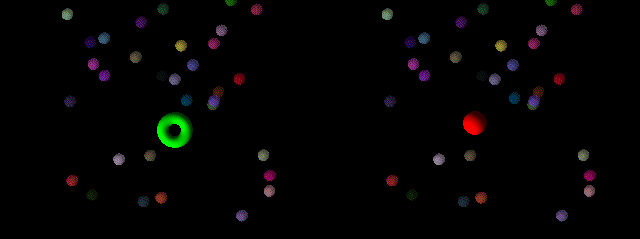 How our sphere responds to mouse click events (mouse down and mouse up).
function thecallback(event)
// callback function to handle events triggered by mousing
// in our [jit.window]
{
	var x,y,button; // some local variables for the callback function
The event constructor stores the message sent by the
We then use JavaScript if() statements based on the
if (event.eventname="="mouse")" {
// we're entering, dragging within, or leaving a "mouse click" event
This part of the code handles a mouse click event (a click down, dragging of the mouse, and the release of a click).
// arguments are (x,y,button,cmd,shift,capslock,option,ctrl)...
// we only care about the first three
x = event.args[0];
y = event.args[1];
button = event.args[2];
The first three arguments to the
   if (button) // we're clicked down
   {
      mywidget.color = [0,1,0,1]; // color our control object green
      mywidget.shape = "torus"; // change it to a donut shape
   }
   else // we've just unclicked
   {
      mywidget.color = [1,0,0,1]; // color our object red
      mywidget.shape = "sphere"; // change back to a sphere
   }
   // move our control object to the drawing context's
   // equivalent of where our mouse event occurred:
   mywidget.position = myrender.screentoworld(x,y);
}
If our button is down, we turn our
Finally, we update the position of the
else if (event.eventname="="mouseidle")" {
   // we're mousing over the window with the mouse up
   x = event.args[0];
   y = event.args[1];
   mywidget.color = [1,1,1,1] ; // color our object white
   mywidget.position = myrender.screentoworld(x,y);
}
This code executes whenever we drag our pointer across the
else if (event.eventname="="mouseidleout")" {
   // we're no longer mousing over the window
   mywidget.color = [1,1,1,0.5] ; // make our object translucent
}
When our pointer leaves the
}
// don't allow this function to be called from Max
thecallback.local = 1;
Because our thecallback() function is intended to be executed by our JitterListener object, we set its
Now that we've seen how to respond to mouse events and update our mywidget object's position, color, and shape accordingly, we need to look at how we perform the actual rendering of our scene in response to a
The majority of our bang() function iterates through the positions of all the little spheres and compares them to the position of the large one. If the distance between them is small enough that the spheres would overlap when drawn, we move the little sphere away the minimum amount necessary to have the spheres touch. This type of processing is known as collision detection and is a ubiquitous technique in the field of computer animation.
function bang()
// main drawing loop... figure out which little spheres to move
// and drive the renderer
{
  // collision detection block. we need to iterate through
  // the little spheres and check their distance from the control
  // object. if we're touching we move the little sphere away
  // along the correct angle of contact.
  for(var i = 0;i<OBJECT_COUNT;i++) {
We enter a JavaScript for() loop to check the position of our large sphere against every small sphere, one at a time.
// cartesian distance along the x and y axis
var distx = mywidget.position[0]-mysphere[i].position[0];
var disty = mywidget.position[1]-mysphere[i].position[1];

// polar distance between the two objects
var r = Math.sqrt(distx*distx+disty*disty);
// angle of little sphere around control object
var theta = Math.atan2(disty,distx);
By subtracting the x and y positions of the two spheres (large and small) from one another, we get their Cartesian distance. We can convert this to polar (absolute) distance by applying the Pythagorean theorem to derive the hypotenuse (stored in the variable r). We then derive the angle of the small sphere around the large one by taking the arctangent of the rise (x) over the run (y).
// check for collision...
if(r<0.15)
// control object is size 0.1, little spheres are 0.05,
// so less than 0.15 and it's a hit...
{
Because our large sphere has a
   // convert polar->cartesian to figure out x and y displacement
   var movex = (0.15-r)*Math.cos(theta);
   var movey = (0.15-r)*Math.sin(theta);

   // offset the little sphere to the new position,
   // which should be just beyond touching at the
   // angle of contact we had before. the result
   // should look like we've "pushed" it along...
   mysphere[i].position = [mysphere[i].position[0]-movex, mysphere[i].position[1]-movey];
}
We use the polar distance and angle, combined with the minimum allowable distance between the objects (0.15), to derive how far we need to nudge the little sphere along the x and y axes to stop it from overlapping the large sphere. We figure out these values by converting the polar coordinates back into Cartesian values stored in the variables movex and movey. We then subtract these two variables' values from the current position of the small sphere, pushing it out of the way.
  // rendering block...
  myrender.erase(); // erase the drawing context
  myrender.drawclients(); // draw the client objects
  myrender.swap(); // swap in the new drawing
}
This last block of code does the actual rendering. Just as you would when working with Jitter OpenGL objects in a Max patcher, you send an
function fullscreen(v)
// function to send the [jit.window] into fullscreen mode
{
  mywindow.fullscreen = v;
}
The fullscreen() attribute of a
An entire OpenGL Jitter patch can be encapsulated in JavaScript by instantiating
// 47jMarbles.js
//
// Demonstrates how to set up a JitterListener object to listen
// to the output of a Jitter object instantiated within [js].
//
// rld, 7.05
//

var OBJECT_COUNT = 32; // number of little spheres

// create a [jit.window] object for our display
// (this is the object we'll "listen" to):
var mywindow = new JitterObject("jit.window","ListenWindow");
// turn off depth testing... we're using blending instead:
mywindow.depthbuffer = 0;
// turn ON idlemousing... we want to listen for it:
mywindow.idlemouse = 1;

// create a [jit.gl.render] object for drawing into our window:
var myrender = new JitterObject("jit.gl.render","ListenWindow");
// use a 2-dimensional projection:
myrender.ortho = 2;
// set background to black with full erase opacity (no trails):
myrender.erase_color = [0,0,0,1];

// create a [jit.gl.gridshape] object for use to control with the mouse
var mywidget = new JitterObject("jit.gl.gridshape","ListenWindow");
mywidget.shape = "sphere";
mywidget.lighting_enable = 1;
mywidget.smooth_shading = 1;
mywidget.scale = [0.1,0.1,0.1];
mywidget.color = [1,1,1,0.5] ;
mywidget.blend_enable = 1;
mywidget.position = [0,0]; // no z necessary in orthographic projection

// create an array of [jit.gl.gridshape] objects randomly arrayed across the window
var mysphere = new Array(OBJECT_COUNT);

// initialize our little spheres with random colors and positions (x,y)
for(var i=0;i<OBJECT_COUNT;i++) {
  mysphere[i] = new JitterObject("jit.gl.gridshape","ListenWindow");
  mysphere[i].shape = "sphere";
  mysphere[i].lighting_enable = 1;
  mysphere[i].smooth_shading = 1;
  mysphere[i].scale = [0.05,0.05,0.05];
  mysphere[i].color = [Math.random(),Math.random(),Math.random(),0.5] ;
  mysphere[i].position = [Math.random()*2.-1, Math.random()*2.-1];
  mysphere[i].blend_enable = 1;
}

// create a JitterListener for our [jit.window] object
var mylistener = new JitterListener(mywindow.getregisteredname(), thecallback);

function randomize() // reorient the little spheres
{
  for(var i=0;i<32;i++) {
   mysphere[i].color = [Math.random(),Math.random(),Math.random(),0.5] ;
   mysphere[i].position = [Math.random()*2.-1, Math.random()*2.-1];
  }
}


function thecallback(event)
// callback function to handle events triggered by mousing
// in our [jit.window]
{

  var x,y,button; // some local variables for thecallback
  if (event.eventname="="mouse")" {
  // we're entering, dragging within, or leaving a "mouse click" event

   // arguments are (x,y,button,cmd,shift,capslock,option,ctrl)...
   // we only care about the first three
   x = event.args[0];
   y = event.args[1];
   button = event.args[2];
   if (button) // we're clicked down
   {
      mywidget.color = [0,1,0,1]; // color our control object green
      mywidget.shape = "torus"; // change it to a donut shape
   }
   else // we've just unclicked
   {
      mywidget.color = [1,0,0,1]; // color our object red
      mywidget.shape = "sphere"; // change back to a sphere
   }
   // move our control object to the drawing context's
   // equivalent of where our mouse event occurred:
   mywidget.position = myrender.screentoworld(x,y);
  }
  else if (event.eventname="="mouseidle")" {
  // we're mousing over the window with the mouse up
   x = event.args[0];
   y = event.args[1];
   mywidget.color = [1,1,1,1] ; // color our object white
   // move our control object to the drawing context's
   // equivalent of where our mouse event occurred:
   mywidget.position = myrender.screentoworld(x,y);
  }
  else if (event.eventname="="mouseidleout")" {
  // we're no longer mousing over the window
   mywidget.color = [1,1,1,0.5] ; // make our object translucent
  }


}
// don't allow this function to be called from Max
thecallback.local = 1;

function bang()
// main drawing loop... figure out which little spheres to move
// and drive the renderer
{
  // collision detection block. we need to iterate through
  // the little spheres and check their distance from the control
  // object. if we're touching we move the little sphere away
  // along the correct angle of contact.
  for(var i = 0;i<OBJECT_COUNT;i++) {
   // cartesian distance along the x and y axis
   var distx = mywidget.position[0]-mysphere[i].position[0];
   var disty = mywidget.position[1]-mysphere[i].position[1];

   // polar distance between the two objects
   var r = Math.sqrt(distx*distx+disty*disty);
   // angle of little sphere around control object
   var theta = Math.atan2(disty,distx);

   // check for collision...
   if(r<0.15)
   // control object is size 0.1, little spheres are 0.05,
   // so less than 0.15 and it's a hit...
   {
      // convert polar->cartesian to figure out x and y displacement
      var movex = (0.15-r)*Math.cos(theta);
      var movey = (0.15-r)*Math.sin(theta);

      // offset the little sphere to the new position,
      // which should be just beyond touching at the
      // angle of contact we had before. the result
      // should look like we've "pushed" it along...
      mysphere[i].position = [mysphere[i].position[0]-movex, mysphere[i].position[1]-movey];
   }
  }

  // rendering block...
  myrender.erase(); // erase the drawing context
  myrender.drawclients(); // draw the client objects
  myrender.swap(); // swap in the new drawing
}

function fullscreen(v)
// function to send the [jit.window] into fullscreen mode
{
  mywindow.fullscreen = v;
}