In the previous tutorial, we saw how to draw OpenGL graphics into a jit.window using the jit.gl.render object. Now we will look at the other kinds of destinations into which a jit.gl.render object can draw, what to use them for, and how to switch between destinations.
Open the tutorial and double-click the Render_Destinations subpatch to open it.
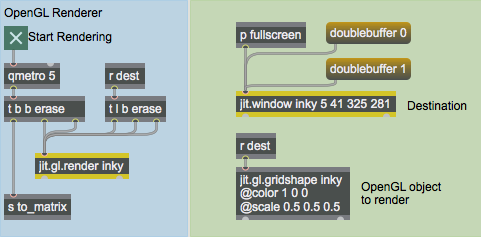
In the upper left of the patch is a jit.gl.render object with an argument of inky, along with other objects.
Click on the toggle in the upper left of the patch labeled Start Rendering.
You should see a red ball appear in the jit.window object. The jit.gl.gridshape object is drawing the ball. Its first argument, inky, specifies the drawing context currently being drawn by the jit.gl.render object to the jit.window. The other arguments set the color and scale attributes of the ball.
Draw a red ball in the window named inky
Drawing and Swapping Buffers
Clicking the toggle starts the qmetro object, which sends bang messages to the object t b b erase. This object first sends an erase message followed by a bang message to the jit.gl.render object, and then a bang message that is used elsewhere in the patch.
When the jit.gl.render object receives the bang message, it draws all of the GL group objects which share its destination, then copies its offscreen buffer, if any, to the screen. An offscreen buffer is an area of memory not visible on the screen, the same size as the drawing destination. By default, all drawing contexts have an offscreen buffer. Drawing is done into the buffer, which must then be copied to the screen in order to be seen.
The offscreen buffer makes flicker-free drawing and animation possible, as we see here. Even though the buffer is being erased before the red ball is drawn each time, we never see the buffer in its erased state. To see what drawing looks like without the offscreen buffer, click on the message box doublebuffer 0 in the upper right of the patch . You will probably see the image start to flicker. This happens because the erase message now causes the window itself to be erased, not the offscreen buffer. The window remains blank for a short but indeterminate period of time before the red ball is drawn, so you can see the area under the ball flickering between red and the dark gray of the erased window. Click the message box doublebuffer 1 to remake the offscreen buffer and stop the flickering.
Setting Fullscreen Mode
The p fullscreen subpatch contains a key object, a select object, a toggle, a message box and an outlet object that sends the results of the subpatch to the jit.window object. This is standard Max stuff, so we won’t go over it in too much detail— the result is that the escape key toggles between sending the messages fullscreen 0 and fullscreen 1 to the jit.window object. (See the "Full Screen Display" section of Tutorial 14.)
Press the 'esc' key to change the jit.window object to fullscreen mode and back.
The escape key seems to be a common way to toggle fullscreen mode, so we’ve used this setup in many of the example patches. It’s important to note, however, that this is just a convention—there’s nothing built into Jitter that forces you to use one key or another for this purpose.
You can use the fsmenubar attribute in conjunction with the fullscreen message to hide the menubar in addition to covering the screen. If the jit.window object has the fsmenubar attribute set to 0, the menubar will be hidden
Setting a jit.pwindow Destination
The jit.gl.render object can draw to two different kinds of destinations. This patch contains an object example of the two: a jit.window and a jit.pwindow. Right now we are rendering to the jit.window object. To change the destination to the jit.pwindow object, we need to first name the jit.pwindow object and then set the destinations of the jit.gl.render object and the jit.gl.gridshape object.
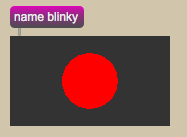
Click on the message box name blinky above the lefthand jit.pwindow objects.
This names the jit.pwindow object, which allows it to be used as a rendering destination.
To switch the drawing to this destination, we need to send messages to both the
jit.gl.render object and the jit.gl.gridshape object, telling them about the new destination.
Click on the message box blinky in the Switch Destinations section of the patch.
The symbol drawto is prepended to the message blinky, and the result is sent to the s dest
object. Two objects receive this message — jit.gl.gridshape and t l b erase. The trigger object
sends a sequence of messages to the jit.gl.render object, which tell it to:
Erase its current destination’s draw buffer
Swap that buffer to the screen, visibly clearing the old destination, and
Switch future drawing to the new destination.
The result is that the red ball is displayed on the jit.pwindow object at the right of the patch.
Viewing our rendered output in a jit.pwindow object
Rendering to a Jitter Matrix
Open the Matrix_Rendering subpatch.
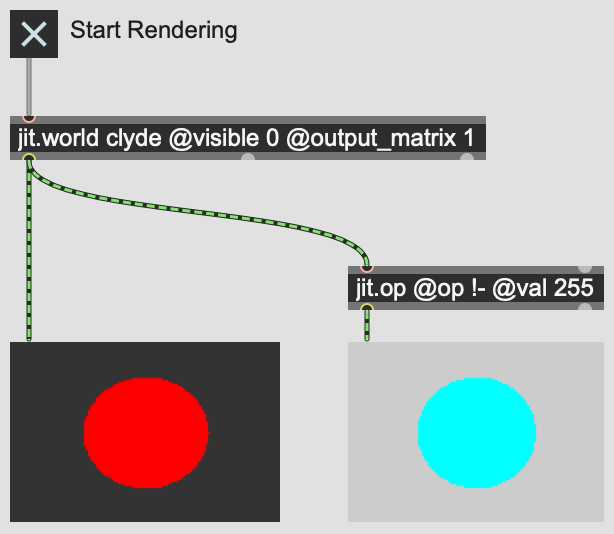
You may want to create a rasterized image of your OpenGL scene so that any of Jitter's video-processing effects can be applied to the image. You can do this by using the @output_matrix attribute of the jit.world object. Click the toggle labeled Start Rendering.
You should see a cyan ball on a light gray background. This is because the red ball image generated by OpenGL is processed through the jit.op object, which subtracts each color component from 255, inverting the image.
Utilizing the matrix output of jit.world
Hardware vs. Software Rendering: One of the great advantages about using OpenGL for rendering graphics is that most of the work can be done by the graphics accelerator hardware in your computer, freeing the CPU up for other work such as generating audio. When drawing into jit.window objects or jit.pwindow objects, the hardware renderer can be used. Unfortunately, due to limitations of the current system software the hardware renderer cannot draw directly into jit.matrix objects. Note that drawing into Jitter matrices is significantly slower than drawing to jit.window or jit.pwindow objects, especially for complex scenes or those involving textures.
Multiple Renderers and Drawing Order
Open the More_Render_Destinations subpatch.
Note that the jit.gl.gridshape objects have their z scaling set to 0. This essentially makes them 2D objects.
To move an OpenGL scene to a different destination, the jit.gl.render object as well as any GL group objects involved in drawing the scene must receive the drawto message. Why not just send a message to the renderer, telling it to move the entire scene? The reason is that each GL group object can have an independent destination, as well as each renderer. Objects in the GL group can be moved between multiple renderers. To see an example of why this might be useful, please look at the right-hand portion of the patch for this tutorial.
At the right are three jit.pwindow objects named A, B and C. The message box objects above them are not strictly necessary, because once a jit.pwindow object has been named, its name is stored with it in the patch. But they are useful here as labels and as a reminder of what messages to send to name the objects.
There are also three jit.gl.render objects in the patch. Each of them is pointed at a different destination.
Click the toggle labeled Start Rendering.
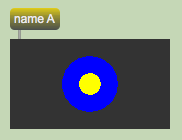
This repeatedly sends the erase message followed by a bang message to each of the three renderers. You should see a yellow circle within a blue circle in the topmost drawing destination. This simple OpenGL scene is created by the two jit.gl.gridshape objects in the bottom left of the patch. We can move each of these objects to any of the three drawing destinations present.
Rendering to jit.pwindow AClick the topmost message box reading B in the Switch Destinations section of the tutorial patch. This changes the destination of the blue circle to the draw context named "B"—it now appears on the center jit.pwindow. Click the lower message box reading B in the Switch Destinations section of the tutorial patch. This changes the destination of the yellow circle to the draw context named "B". The two objects are reunited.
Each time a jit.gl.render object receives a bang message, it draws all of the GL group objects that have been added to its context. It draws the objects in the order in which they were added to the context. In this case, the yellow circle was added to the draw context named "B" after the blue circle, so it appears on top. To change this order, we can send the message drawto B to the jit.gl.gridshape object drawing the blue circle again. This will remove it from its present place in the list of objects for the context named B, and add it again at the end of the list.
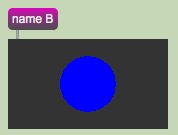
Click the upper message box reading B in the Switch Destinations section of the tutorial patch again. The blue circle should now obscure the yellow circle.The blue circle obscures the yellow one
Summary
We have introduced a flexible system for creating multiple OpenGL renderers and drawing destinations, and for moving objects in the GL group between them using drawto messages.
Two Jitter objects can function as drawing destinations: jit.window and jit.pwindow. Each kind of destination has different uses. A jit.window object can be moved to different monitors and quickly enlarged to cover the screen. A jit.pwindow object keeps its location in the patch. Futhermore, we can use the matrix output of the jit.world object to create a rasterized image of the 3D scene, to which further video processing may be applied.
Generate simple geometric shapes as a connected gridRender Open GLThe Jitter Matrix!In-Patcher WindowDisplay data in a WindowQueue-based metronome
 Draw a red ball in the window named
  Viewing our rendered output in a
  Utilizing the matrix output of
  Rendering to
  The blue circle obscures the yellow one