Using the Alpha ChannelRendering DestinationsJitter Tutorials
Tutorial 30: Drawing 3D text
This tutorial shows you how to draw and position 3D text in a jit.window object using the jit.gl.text3d and jit.gl.render objects. Along the way, we will cover the basics of drawing OpenGL graphics using the jit.gl.render object.
The jit.gl.text3d object is one of the many Jitter OpenGL drawing objects that work in conjunction with the jit.gl.render object. OpenGL is a cross-platform standard for drawing 2D and 3D graphics, designed to describe images so that they can be drawn by graphics coprocessors. These coprocessors, also known Graphics Processor Units or GPUs, speed up drawing operations enormously, allowing complex scenes made of textured polygons to be animated in real time. OpenGL graphics can help you create faster visual displays or interfaces without bogging down your computer’s CPU.
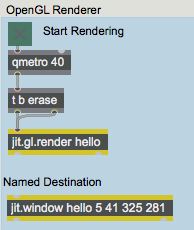
In the lower left of the patch, there is a jit.window object named hello. This window will be the destination for our OpenGL drawing.
Click on the toggle labeled Start Rendering.
The toggle starts the qmetro object,which sends bang messages to a trigger object. For each bang received at its inlet, the trigger object sends the message erase out its right outlet, and then a bang message out its left outlet. These messages are sent to the jit.gl.render hello object.
Creating a Drawing Context
All OpenGL graphics in Jitter are drawn with the aid of jit.gl.render objects. Each jit.gl.render object must refer to a named destination for drawing. You can specify this destination using an initial argument to jit.gl.render. So in this case, jit.gl.render hello creates a jit.gl.render object that will draw to the destination window that we have named hello.
It’s important to note that hello is not the name of the jit.gl.render object—only its destination.
We refer to this combination of a jit.gl.render object and a named destination as a drawing context. A drawing context is required for OpenGL rendering. The objects on the left side of this patch are sufficient to build a valid drawing context, and so when you click on the toggle, the message jit.gl.render: building GL on window ‘hello’ appears in the Max Console. This tells you that the context is being created.
A jit.gl.render object and a named destination create a drawing context
Note: Max version 7 introduced a new object— jit.world which contains a complete drawing context: qmetro, jit.gl.render and jit.window with the escape key linked to fullscrteen display. All you need supply is a toggle and a name.
GL Objects in the Context
Click on the message box reading Hello\, Jitter!.
Technical Detail: The qmetro object is needed in this patch because, unlike most previous tutorial patches, there are no jit.matrix objects present. In complex patches, the drawing or matrix calculations being repeatedly triggered by a metro object may not complete before the next bang is scheduled to arrive. In this example, this situation would occur if the text took more than 40 milliseconds to render. Normally, the Max scheduler would place this bang on its queue—a list of pending messages. Max is not normally allowed to drop messages from the queue. So in this patch, if each bang generated a sequence of events that take longer than 40 milliseconds, and no dropping of messages was allowed, the queue would eventually overflow, or run out of space to store additional pending messages. Then the scheduler would stop, and so would your show! This is probably not what you had in mind. The qmetro object (which is really just a combination of a metro object and the jit.qball object—see Tutorial 16) helps you avoid this situation by dropping any bang messages that are still pending during a calculation. If a bang is scheduled to occur while the rest of the patch is rendering, it will be placed in a queue. If that bang still hasn't been passed to the rest of the patch by the time the next bang occurs, the first bang will be usurped by the second, which will be placed next in the queue. And so on. Let’s say the output of a metro object set to output a bang every 10 milliseconds is sent to a jit.movie object, followed by some effects that take 100 milliseconds per frame to draw. So the jit.movie object will receive 10 bang messages during the time the effects are being calculated. The jit.movie object knows in this case that the processing is not yet complete, and instead of sending out ten jit_matrix messages next time it has a chance, it drops all but one. While the jit.movie and jit.matrix objects have this capability built in, the jit.gl.render object does not. This is because the jit.gl.render object will often need matching groups of messages in order to draw a frame properly. In this example, the erase message is needed to clear the screen, and the bang message draws the text. If an erase message was dropped to avoid overflowing the queue, multiple bang messages might be processed in a row, and multiple copies of the text would be drawn at once, which is not what we want to do. As patches get more complex, different kinds of visual artifacts might result. So, the qmetro object is provided to let the designer of the patch decide what messages to drop from the queue. In this example, as in most cases, simply substituting qmetro objects for metro objects insures that the drawing will always look correct, and the queue will never overflow.
Common 3D Attributes
All Jitter OpenGL objects (which all begin with "jit.gl") share a common set of attributes that allow them to be positioned in 3D space, colored, and otherwise modified—the GL group (ob3d). Drawing 3D graphics can be a fairly complex task. The ob3d group simplifies this by insuring that the messages you learn to draw one 3D object will work with all of them, whenever possible. These common attributes are fully documented in the GL group section of the Object Reference of any jit.gl object. To introduce the 3D group here, we will demonstrate the position, rotation, scale and axes attributes by manipulating the jit.gl.text3d object.
We can add a set of spatial axes to the jit.gl.text3d object to make our spatial manipulations easier to see and understand—it's both easier to see how the text object is oriented, and also to see additional information about exactly where the object’s origin is.
Click on the toggle connected to the message box reading axes $1 in order to see the 3d object’s axes.The 3D text at the origin
The x axis, drawn in in red, points to the right. Zero is at the center of the screen, and increasing x values move in the direction of the right of the screen. The y axis, drawn in green, points upwards, and the z axis, drawn in blue, points out of the screen towards you (since it is pointed directly toward you, you will only see a small blue dot). These axes represent the object’s local coordinate system as it moves through the world. When a GL group object is first created, its local coordinate system is not rotated, translated, or scaled—it has the same coordinate system as the rest of the 3D world, by default
The text “Hello, Jitter!” is displayed in the jit.window object's display area, but it starts at the center of the screen, so the final part is cut off. Let’s move the text to the left.
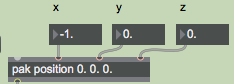
Set the number box labeled x in the Common 3D attributes section of the patch to the value –1.
The Number box sends a floating-point value to the pak object, which sends the message position followed by three numbers to the jit.gl.text3d object. As you change the value in the number box, you can see the text slide to the left until all of it is visible on the screen.
Changing the position attribute
We have just changed the position attribute of the jit.gl.text3d object. The position message can be followed by three number arguments that set the position of the object in three dimensions. If fewer than three numbers follow the position message, the axes are filled in the order [x, y, z], and the position of the object on the unspecified axes is set to 0. For example, sending the message position 5. will set the position of a GL group object to the location [5, 0, 0].
The operation of changing an object’s position is called translation.
Now, let’s rotate the text.
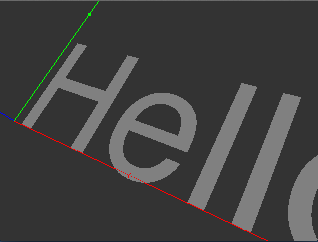
Set the number boxes labeled x, y and z directly above the pak rotate object in the Common 3D attributes section of the patch to the value 1. This sets the axis of rotation.Drag the number box labeled angle to the value 320. You will see the text rotate around the axis into the position shown in this screenshot.The 3D text after translation and rotation
Sending the message rotate followed by from one to four numbers sets the rotation attribute of an GL group object. The first number is an amount of rotation in degrees, counterclockwise around the object’s axis of rotation. The other three numbers specify this axis of rotation as an [x, y, z] vector. As with the position attribute, some values following the rotation attribute can be dropped and default values will be understood. If the rotation message is followed by only one number, that number is understood to mean the angle in degrees, and the axis of rotation is [0, 0, 1]. This rotates the object around the z axis, or in other words, in the x-y plane of the screen. If two or more numbers accompany the rotation message, the first one always specifies the rotation angle, and following ones specify the vector of rotation in the order in which they appear.
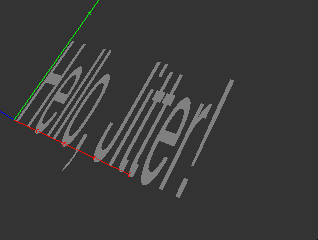
Set the number box labeled x directly above the pak scale object to 0.25. This scales the 3D text to quarter size along its local x axis.The 3D text after translation, rotation and scaling
Note that the red axis scales along with the object. The dots along the line are now twice as close together as they were before the scale operation. The axes are always drawn in the GL group’s local coordinate system, which in this case has been translated, rotated, and scaled with respect to the world coordinate system in the jit.gl.render object.
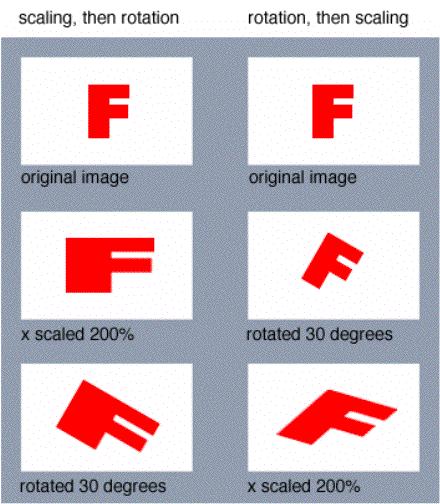
It's important to consider the order of operations when performing geometry transforms. You can set the rotate, position and scale attributes of an object independently in any order you wish. But each time it is drawn, the object is transformed in the following order:
Scaling
Rotation
Translation
Keeping this order is essential so that the attributes behave predictably. If rotation occurred before scaling, for example, a scale 0.5 message would scale the object not just in its x coordinate, but in some combination of x, y and z depending on the rotation of the object.
The following example shows the difference that performing operations in different orders makes.
The order of operations makes all the difference
Summary
Creating a draw context is the first step to using OpenGL graphics in Jitter. A draw context consists of a named destination, such as a window, and a jit.gl.render object drawing to that destination.
A variety of Jitter objects exist which draw OpenGL graphics in cooperation with jit.gl.render; their names all start with “jit.gl.” The jit.gl.text3d object is one example. All the Jitter OpenGL objects share a common set of attributes for moving them in 3D space. This group of objects is referred to as the GL group.
Read and draw Wavefront .obj modelsGenerate platonic solidsRender Open GLWrite vector textDisplay data in a WindowQueue-based metronome
 A
A 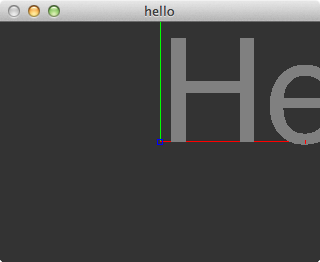 The 3D text at the origin
 Changing the position attribute
 The 3D text after translation and rotation
 The 3D text after translation, rotation and scaling
 The order of operations makes all the difference