This tutorial explains how to perform chromakeying with two source movies using the jit.chromakey object. We will also learn how to find out the color of any pixel on the screen with the suckah object.
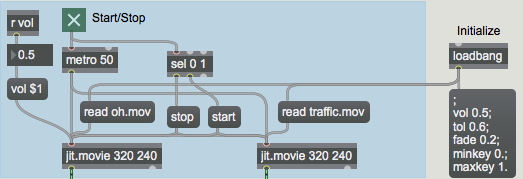
When you open the tutorial patch, Max will automatically read two movies (oh.mov and traffic.mov) into two jit.movie objects by sending appropriate read messages to those objects with a loadbang:
Initializing the patch via loadbang.
Additional parameters we need for this patch are also initialized by the loadbang, which is connected to the message box on the right of the patch. The message box initializes the rest of the patch by sending messages to named receive objects elsewhere in the patch. (See Tutorial 16: Remote Messaging — Sending messages without patchcords).
Click the toggle box to start the metro. You should see images appear in the three jit.pwindow objects in the patch. Note that the toggle box not only starts and stops the metro, but also starts and stops the movie transport of the two jit.movie objects.
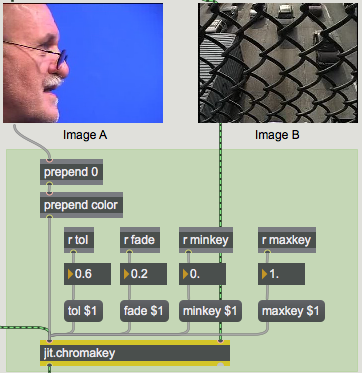
The lower half of the tutorial patch (with two of the three jit.pwindow objects) looks something like this:
The jit.chromakey objectClick with the mouse on the blue region of the left-hand jit.pwindow object (i.e. the area behind the man's head in the movie).
The third jit.pwindow object (in the lower-right hand of the patch) will look like this:
How the heck did he get in front of that fence?
Historical note: Bluescreen compositing, or the process of shooting live footage against a blue matte background only to replace the blue with a separate image later, has been around since the late 1930s. Originally a very expensive film process involving lithographic color separation, bluescreen (and its now more common sibling, greenscreen) has evolved into the most commonplace special effect in film, television, and video. The ability to perform chromakeying (the technical term for the process) using digital superimposition has only made it more ubiquitous. Video chromakeying is often referred to in the television industry as CSO (Colour Separation Overlay), the name given to the process by the BBC team that developed it in the 1960s. Petro Vlahos, a bluescreen innovator in the 1960s, was awarded a Lifetime Achievement Award by the Academy of Motion Picture Arts and Sciences in 1994, an acknowledgment of how indispensible the technology had become.
The jit.chromakey object
Chromakeying—the process of superimposing one image on top of another by selective replacement of color—is accomplished in Jitter by the jit.chromakey object. By specifying a color and a few other parameters, jit.chromakey detects cells containing that color in the first (left-hand) matrix and replaces them with the equivalent cells in the second (right-hand) matrix when it constructs the output matrix. The result is that cells from the first matrix are superimposed onto the second.
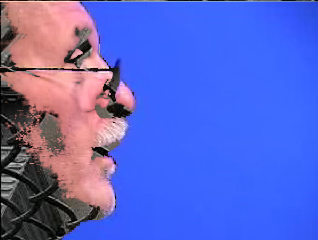
Since any color is fair game for the chromakey, try clicking elsewhere in the lefthand jit.pwindow. Different colors will be knocked out of the man's face to reveal the traffic.The disappearing face trick (part one)
The jit.chromakey object uses the color attribute to define the center color to in the chromakey (called the reference color). This attribute is set as a list of values for as many planes as exist in the matrices that are being keyed. The tol attribute specifies a range of values around the key color. Colors within this range will be keyed as well. When using jit.chromakey with char matrices (e.g. video), the attributes are specified in a floating point range 0 to 1, which is then mapped to the 0-255 range necessary for char data. To set the color attribute for a solid green chromakey, therefore, you would set the attribute as color 0 0 1.0 0, not 0 0 255 0. A tol range of 0.5 will key all values within half of the chromatic distance from the reference color (computed as the sum of the absolute differences between the reference color and the actual cell value in each plane). A tol range of 0 will treat only the exact reference color as part of the chromakey.
Try clicking on the blue region in the lefthand movie again, and play with the tol attribute to see how the chromakey output changes. At low tolerance, some of the bluescreen in the left image will remain in the keyed output. At a very high tolerance, parts of the man's face may disappear.
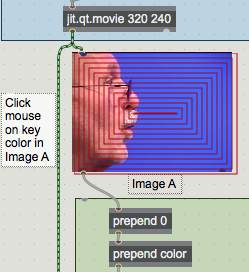
In the tutorial patch, the color attribute to jit.chromakey is set by clicking on an invisible object. If you unlock the patch, you will see a region of concentric red squares that sit on top of the left-hand jit.pwindow object:
The suckah object
The region is a Max user interface object called suckah, which appears on the add object:interface palette like this:
The suckah object in the object palette
The suckah object will report the RGB values of any pixel on the screen that the suckah object overlays. It reports these values as a list of floats in the range 0.0 to 1.0 when you click in the object in a locked patch. For example, clicking on a region of solid blue that has a suckah on top of it will cause the suckah to send out the list 0 0 1.0. (The first version of suckah used the range 0 to 255 for output. There is a checkbox in the inspector if this behavior is desired.)
To set the color attribute for our jit.chromakey object, we take the RGB list that comes out of the suckah object and send it through a prepend0, which adds an alpha value of 0 to the front of the list. The message is then completed by the prependcolor and sent to jit.chromakey.
Keying options
The jit.chromakey object has additional attributes: minkey, maxkey, and fade. When a matrix arrives in the left inlet, jit.chromakey creates a greyscale (1-plane) mask internally, based on that matrix. Cells in the incoming matrix that have color values within the tolerance (tol) range are set to the maxkey attribute's value (the default is 1) in the mask. Regions outside the tolerance range are multiplied by the minkey attribute (default is 0). If the minkey and maxkey are set to 0 and 1, the resulting image should look white where the keying should take place, and black where the original image is to be retained.
The resulting mask and its inverse are then multiplied by the right and left matrices, respectively. The results of the multiplication are then added to form the composite image. The following diagram shows you a pictorial overview of the process:
The two sources, their masks (with minkey at 0 and maxkey at 1) and the composite chromakey.
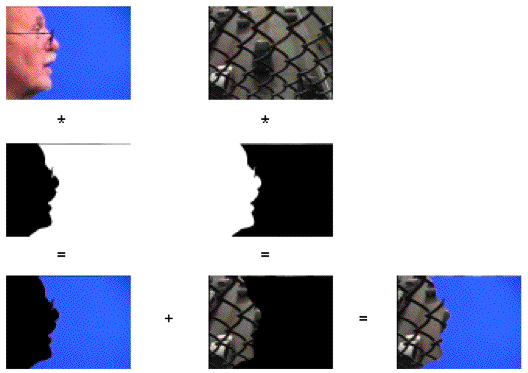
As you can see, the maxkey attribute sets the strength of the righthand matrix in the output, while the minkey attribute sets the strength of the lefthand matrix. If we were to reverse the minkey and maxkey attributes, the chromakey would be reversed, and the following would happen:
The composite effect with the minkey at 1 and the maxkey at 0 (reverse chromakey).
The fade attribute allows for an amount of interpolation between the area being keyed and the area not being keyed. This lets you create a soft edge to the chromakey effect. Colors in the left matrix that are slightly out of bounds of the key tolerance range, yet that are within the range of tol + fade from the reference color, are interpolated between their original (unkeyed) color and the color in the same cell of the right matrix. The amount of interpolation is based on how great the fade value is, and how far the color in question lies outside the tolerance range.
Try experimenting with different tol, fade, minkey, maxkey and color values. Watch how the five attributes interact for different keying effects, and how the minkey and maxkey values complement one another.
Accurate chromakeying can be a challenging process. Correct values for the tol and fade attributes are essential to make sure that the correct regions in the first image are keyed to the second image. In general, very detailed key images will show slight speckling in spots where the colors rapidly move between keyed and non-keyed regions. In addition, a single key color (e.g. blue) almost never suffices for a complete key, so a range of values must always be used. You will often find, however, that the color you want keyed out of part of the image is somewhat present in the region you want to retain! Balancing all of these factors to get the most convincing effect is the hardest part of using the jit.chromakey object.
Summary
The jit.chromakey object lets you do two-source chromakeying in Jitter. You can set a color range for the key using the color and tol attributes, and use the fade, minkey, and maxkey values to define how the two matrices work in a composite. The suckah user interface object allows you to easily select colors as they appear on the screen by setting the object over a jit.pwindow. Clicking the suckah object will give you the color of the pixel just clicked on the screen.
Keying based on chromatic distanceIn-Patcher WindowPlay or edit a movieSend a bang automatically when patcher is loadedsend bangs at regular intervalsPlace one message at the beginning of anotherGet pixel color at display coordinatesEvaluate a mathematical expression on lists
 Initializing the patch via
  The
The 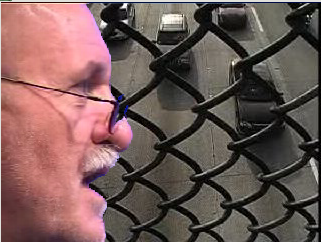 How the heck did he get in front of that fence?
 The disappearing face trick (part one)
 The
The 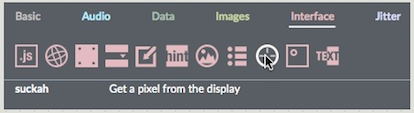 The
The 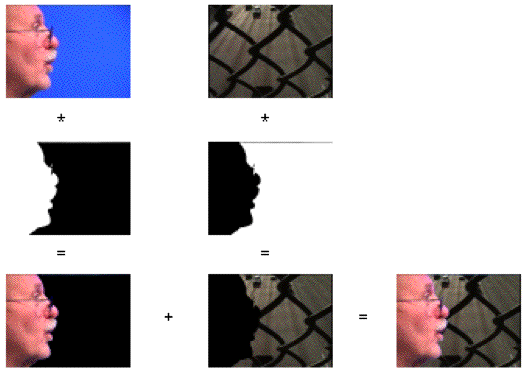 The two sources, their masks (with
  The composite effect with the