Simple Mixing
Chromakeying
Jitter Tutorials
Tutorial 9: More Mixing
This tutorial explores some crossfade techniques that can be acheived with jit.scalebias and jit.op. Although this is a more complex method than the simple jit.xfade approach, it can provide more flexibility.
Mixing and Crossfading Made Explicit
In the previous chapter we explained how the jit.xfade object uses scaling (multiplication) and addition to mix two matrices together in varying proportions. In this tutorial we'll use the jit.scalebias and jit.op objects to perform those mathematical operations ourselves.
This will provide us with a few advantages. First, it will allow us to demonstrate the mathematics of mixing and crossfading explicitly. Second, it will allow us to demonstrate how jit.op can perform math operations using two matrices as its inputs. (In Tutorial 3 we showed jit.op in action with scalar values operating on a single matrix.) Third, it will allow us to specify balance settings (scaling factors) for the two matrices independently, providing more flexibility than the jit.xfade object. Finally, because jit.op can implement so many different kinds of math operations, we can try other means of combining matrices to see different visual effects.
Mixing Revisited
Open the tutorial patch.
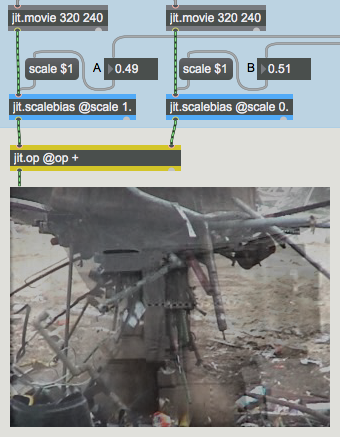 Multiplication and addition to mix /crossfade matrices (replicating jit.xfade)
Here you see each of two different videos being scaled down (darkened) by some factor between 0 and 1 with jit.scalebias. Below that, you see a slightly new wrinkle in the use of jit.op: the input to both inlets is a matrix. When we do this, jit.op performs the specified math operation on every single value individually, pairing each value in the left matrix with the corresponding value in the right matrix. This lets us add all the values in the two matrices, effectively mixing the images.
The result of these multiplications and this addition is comparable to what the jit.xfade object performs internally. You can verify this by using the controls in the top right part of the patch—which are nearly identical to those of the previous chapter—to crossfade the videos.
Start the metro and use the Mixer slider to perform a crossfade from video A to video B.
Note that we send the crossfade value directly as the scale attribute for the B video, and at the same time we use a !- 1 object to scale the A video by 1 minus that value. That way, the sum of the two scaling factors always equals 1, as it does in jit.xfade.
Combine Matrices Using Other Operators
Addition is perhaps the most obvious operation to perform with two matrices, but it's not the only one possible. By changing the op attribute of the jit.op object, we can try out many other operations to see what kind of visual effect they create.
Set a very gradual crossfade time in the Transition Time number box (say, 10000 ms). Choose an operator other than + in the Operator pop-up menu. Now click on the Go To switch to begin the crossfade. You can see how that particular operator looks when implemented with two video matrices.
The pop-up menu contains a few of the many operators provided by jit.op. Here's a brief description of each operator in the menu.
- + Add the values of B to A.
- -m Subtract the values of B from A, then perform a modulo operation to wrap the result back into the desired range.
- max Use whichever value is greater, A or B.
- absdiff Subtract the values of B from A, then use the absolute value of that difference.
- | "Bitwise Or"; using binary number values, whenever a bit is 1 in either A or B, set it to 1 in the result.
- ^ "Bitwise Exclusive Or"; using binary number values, whenever the bits of A and B are not the same, set that bit to 1 in the result, otherwise set the bit to 0.
- > If the value in A is greater than the value in B, set the result to 1 (or char 255), otherwise set it to 0.
- < If the value in A is less than the value in B, set the result to 1 (or char 255), otherwise set it to 0.
- >p If the value in A is greater than the value in B, use the A value in the result, otherwise set it to 0.
- <p If the value in A is less than the value in B, use the A value in the result, otherwise set it to 0.
If you want to see what other operators are available, check the Object Reference documentation for jit.op.
If you'd like, you can drag directly on the number boxes above the jit.scalebias objects, to set the balance levels independently (i.e. differently from the way our crossfade scheme sets them). You can also try values that exceed the 0 to 1 range.
jit.scalebias vs. jit.op @op *
We chose to use the jit.scalebias object in this patch to perform the scaling multiplications instead of using jit.op with the * operator. Why? When jit.op is performing operations on char data (as we are doing in this patch), it limits its val attribute to the range 0.-1. (when specified as a float) or 0-255 (when specified as an int). In cases where we want to multiply char data by some amount from 0. to 1., jit.op is just fine. But if we want to multiply char data by some other amount, then jit.scalebias is the correct object to use because it permits scale factors that exceed the 0 to 1 range. jit.scalebias is only for handling 4-plane char matrices, but that's OK because that's what we're scaling in this example. So, in this patch, since we're operating on 4-plane char matrices, and since we want you to have the ability to try scaling factors that exceed the 0 to 1 range, we have used jit.scalebias.
Summary
You can use the jit.op object to perform various math operations using the the values from two different matrices. jit.op performs the specified math operation on every value individually, pairing each value in the left matrix with the corresponding value in the right matrix. When the dim, planecount, and type attributes of the two matrices differ, jit.op uses the attributes of the matrix in the left inlet. Different math operators can create a variety of visual effects when used to combine two video images.
Apply binary or unary operators
Play or edit a movie
Multiply and add