Editing Jitter object parameters
Live Capture
Jitter Tutorials
Video and Graphics Tutorial 1: Display a Video
Play a video in your patcher
We're going to get started using Jitter by creating a display window and showing a video in two different ways.
The World
Our first step is to create a jit.world object. After you create the jit.world, a display window will appear on your screen. This is where we’ll render all of our output. The jit.world object is at the center of most Jitter patches, since it provides a lot of core functionality - such as this display window, as an example. You can name this window by providing an argument to jit.world (we're using myworld in this
example). Naming your world creates a specific and unique context, which you will learn to use in later tutorials. Now let’s make it do something.
Displaying the Movie
The first thing we’ll do with our jit.world is display a movie. First, we’ll need to turn jit.world rendering on. To get it working, create and attach a toggle box to the inlet.
 setting up your world
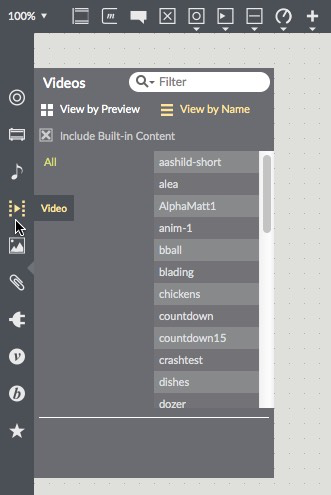
Click on the video icon on the left sidebar of your patcher window to show the Video Browser.
 loading a video
Click on the name of a video and drag it from the browser to an empty spot in your patcher windoe. This creates a jit.playlist loaded with the video of your choice. You can also drag other videos onto this jit.playlist object to load more videos for displaying.
In order to see the video displayed, we need to connect the left outlet of the jit.playlist to the inlet of the jit.world object. Click on the lock icon at the lower left
corner of the patcher window to lock the patcher, click on the jit.world toggle, and click the jit.playlist object's play button. The video should be displaying in the display window.
 play some video
A More Basic Option
There will be times when you don't need the user interface and features of a jit.playlist object, or times when you want to have a more direct programming interface for video playback. For these cases, the jit.movie object will be more useful.
Let’s start by unlocking the patch, creating a jit.movie object, and connecting its output to the inlet of the jit.world object (We can disconnect the jit.playlist, since we won't be using it). To load a movie, create a message box containing the word read and connect it to the inlet of jit.movie. Lock the patcher and click the message box to open a file dialog box that will let you browse your computer and select a video file to play.
We can send other messages to jit.movie to control playback. Try creating some new message boxes containing the messsages stop, start, jump 5. Connect their outlets to the inlet of jit.movie and explore using them to control your video.
 play some video
The jit.movie object has an impressive number of special messages and attributes, so you’ll probably want to spend some time exploring the help patch and reference for more ways to manipulate playback.
If you want to view the video inside your patcher window
rather than in another window, you can use the jit.pwindow object, which embeds a display window in your patch. Make one and try connecting the its inlet to the outlet jit.playlist.
Technical Notes