MSP Tutorials
Dynamics Tutorial 1: Envelope Following
In this group of tutorials, we'll look at different ways to work
with dynamics in audio signals. The ability to use and control
the amplitude of an audio waveform is important for many applications,
from the macro level (audio compression) to the micro level (distortion).
In this first tutorial, we'll learn to derive control values from amplitude
parameters of an audio signal which we can use to control parameters
elsewhere in the signal chain. This technique is called envelope following.
The envelope, please...
We've learned from working with MSP that digital audio is represented as
a stream of discrete samples, each of which represent the amplitude of
a signal at a given time. However, when we actually think about (and use)
the term amplitude, we aren't necessarily thinking of it on a sample-by-sample
basis. Instead, we discuss the amplitude of a sound based on how loud it
seems to us as listeners. Alternately, we create objective measurement systems
to attempt to quantify this (subjective) loudness, such as level meters in
audio mixing software. Both of these systems look at the amplitude of an
audio signal not on a sample-by-sample level, but averaged over time.
This technique of deriving the macro-amplitude of a sound's loudness or
volume (as opposed to the micro-amplitude of the sample values) is
called envelope following.
We use the term envelope in synthesizer design to refer to the overall dynamic
shape of the sound. For example, a sound that fades in smoothly and then fades
out over the same amount of time could be said to have a triangular envelope.
A sound with a short attack, a long sustain, and a short fade might look like
a trapezoid. Similarly, we can take any sound source and, with a little bit
of work, abstract its envelope:
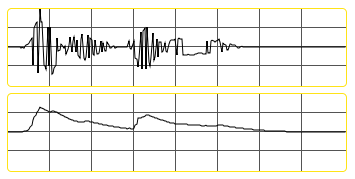 "Is that you?": waveform (top) and envelope (bottom)
To create the envelope above, we looked at the samples within the waveform and
tracked their average amplitude over time. There are several strategies
to do this in MSP, involving a trio of objects that allow us to smooth audio
signals based on different parameters.
In the tutorial patcher, familiarize yourself with the area labeled 1.
This is a basic sample playback patcher that loads an audio file into a buffer~ object
and plays it in an endless loop using the groove~ object. Start the audio, turn
up the gain~ slider, and make sure you can hear the drum loop as it plays.
Envelope following in MSP
Look at the two objects in yellow attached to the output of the groove~ object.
The first thing that needs to be accomplished when deriving the smoothed amplitude
of a sound is to convert the signal into a rectified wave; that is, to
ignore the difference between negative and positive sample values and only
concentrate on their distance from 0. We can do this by taking the absolute
value of a signal, which can be accomplished using the abs~ object in MSP.
The snapshot~ object allows us to convert one sample of an MSP signal
into a floating-point number output from the object as a Max event. Every time
the object receives a bang, it takes the current audio sample and outputs
it into Max as a number which can be viewed, scaled, or used to trigger Max events.
In the case of our patcher, the absolute value of our groove~ object's
output is being used to drive the height of a multislider object, with
the snapshot~ providing the intermediary translation from an MSP signal
t. a Max message. As we can see, the bouncing up and down of the multislider
gives us a vague impression of the amplitude of the drum loop. However, a more
accurate impression of how we hear the sound can be accomplished by smoothing
those values.
Look at the patcher logic labeled 2 in our tutorial. In the number box
labeled 'Up' type the value 1. and hit return. In the number box
labeled 'Down' type the value 100. and hit return. Observe the results as
plotted in the multislider objects below. Now do the reverse (type 1. as
the 'Down' value and 100. as the 'Up' value). Notice the difference?
The output of the send~ object (which consists of our drum loop) is
converted to an absolute value, run through an object called rampsmooth~,
and plotted in a number box and two multislider objects. The
right-hand multislider is in one of its scrolling modes, which allows
us to see values as they unfold over time. The rampsmooth~ object
performs a linear smoothing operation on an input signal. Its two arguments
(or numbers given at its middle and right inlets) control the way in which the
smoothing behaves. The middle inlet controls over how many samples the object
will smooth a changing value when it is rising; the right inlet controls
how many samples it takes for a signal to fall. These two values allow
us to independently smooth increasing and decreasing sample values, so that
sharp onsets can be kept in the envelope but abrupt silences generate a tail.
Look at the area of the tutorial labeled 3. As before, enter 1.
in the number box labeled 'Up' and 100. in the number box
labeled 'Down'. Observe the envelope drawn in the multislider. Now do
the reverse (type 1. as the 'Down' value and 100. as the 'Up' value).
Type 100. for both values.
The slide~ object smooths audio signals logarithmically. The two values provided work as denominators for new rising or falling energy entering the (smoothed) signal. For example, an 'Up' value of 1000 means it will take 1000 samples for a single-sample transition from 0 to 1 to occur. The larger the 'Up' and 'Down' values, the smoother the curve.
Look at patcher area 4. In the number box labeled 'Delta',
type 0.01 and hit return. Observe the results. Type an even smaller
number, such as 0.0001.
The deltaclip~ object works in a different manner from rampsmooth~
and slide~. It sets a threshold for the amount an audio signal can change,
and clips the outgoing signal to that amount. Setting the min
and max values for the delta to -1 and 1 will allow
samples to pass normally provided they don't change by more than that amount.
Smaller values will smooth the audio signal in a relative way so that
the resulting envelope traces a much narrower set of values than the incoming signal.
If we put a burst of noise through the different envelope following
techniques shown in our tutorial patcher, we can see the difference
between the curves they generate:
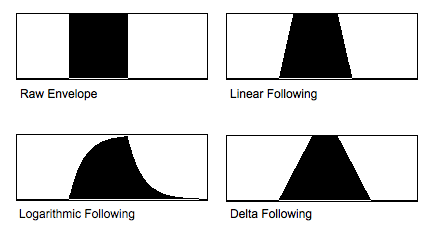 Different envelope followers on a noise burst.
Each of these envelope-following techniques have different musical and
sonic applications and have different signatures. A logarithmic envelope
follower controlling the volume of a synthesizer, for example, would
have a very different sound than a linear one.
Using envelopes as control signals
Look at the patcher logic labeled 5 in the tutorial. Turn up
the gain~ slider to hear the output of the cycle~ object.
Using the umenu, select the different envelope followers as a control
input. If you like, change their parameters as well to see what types of
different effects you can achieve.
The three envelope following patcher areas send their output signals
through send~ objects to any receive~ set to the appropriate
name. In the case of patcher logic 5, this signal (ranging
from 0 to 1 controls the frequency of a cycle~ object,
mapping the control signal to between 100 and 1100 Hz. The
difference between the three envelope type should be apparent if they are
set to fairly strong smoothing values.
Turn down the gain~ slider in patcher area 5 and look at
the patcher logic labeled 6. Turn up the gain~ slider and
select different sources for a control signal from the umenu.
In this example, we use our envelope control signal to modulate the cutoff
frequency of a lores~ filter, creating a dynamic wah-wah effect on a
mixed and detuned waveform.
Turn down patcher area 6 and look at the patcher logic labeled 7.
Turn up the gain~ slider and select different envelopes from
the umenu.
In this example, we are using our envelope to create an 'auto-wah' on the
drum loop itself. This is a very common use of envelope following in music
production, where a control signal derived from an audio signal is used to
control a parameter of an effect applied to that same audio clip further
down the chain. Using this logic, we could use our envelope follower to
produce control signals for any signal-processing procedure we want in MSP.
Summary
When talking about the amplitude of an audio signal, we distinguish
between the sample-by-sample amplitude and the overall loudness of a sound.
This second shape is called the envelope of a sound, and the signal
processing involved in deriving it is called envelope following.
Envelopes of audio signals can be created by looking at the absolute (rectified)
waveform (created with the abs~) object and smoothing it using MSP objects
such as rampsmooth~, slide~, or deltaclip~. These smoothed
control signals can then be scaled and used to control parameters on any synthesis
or signal processing operation you like. The MSP snapshot~ object is useful
for converting MSP audio signals into floating-point Max numbers which can be
viewed using objects such as multislider.
Absolute value of a signal
Convert signal values to numbers
Smooth an incoming signal
Filter a signal logarithmically
Limit changes in signal amplitude