Geometry Under the HoodSpatial MappingJitter Tutorials
Tutorial 38: Basic Performance Setup
In this chapter, we will walk through the various steps involved in setting up your Jitter patch for live performance. Along the way, we'll look at using a second video monitor for fullscreen output.
Open the tutorial patch.
Most of the patches we've looked at so far use the jit.pwindow object for displaying video data. While that object is extremely practical for looking at video inside of your patch, it's not so ideal for live performance (unless you want the audience to see your patch, too). In these situations, we use the jit.window object (which you may remember from way back in Tutorial 1 Play A Movie).
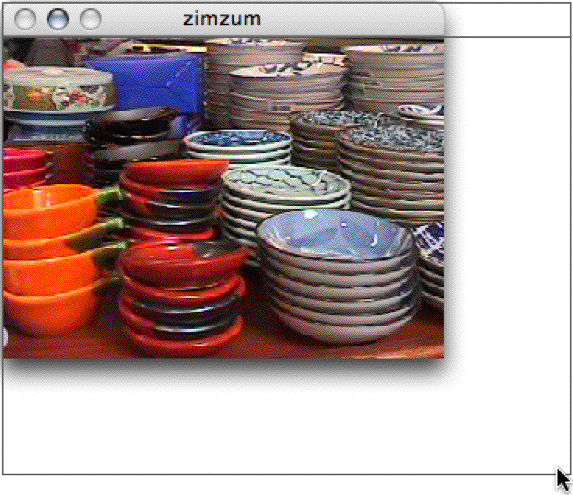
Click on the message box labeled read dishes.mov and turn on the toggle box labeled Start Movie to begin movie playback. You should see the movie playing in the jit.window object's window.
What's that @noaccel 1 attribute typed into the jit.window object? That tells the object that we want to disable OpenGL acceleration. For the purposes of this tutorial, we're going to ignore some of the more advanced features of jit.window—in particular, the ability to use Jitter's OpenGL support to improve the appearance and overall speed of video data. Don't worry, though. Those features will be covered in later Tutorial chapters.
Let's take a look at some of the capabilities of the jit.window object. In addition to moving and sizing the window with the mouse (clicking in the lower right hand corner lets us resize the window manually), we can send messages to the object and cause the window to move or resize, we can remove the window's border, make the window float above all other windows, and we can make the window fill the entire screen.
Resizing the jit.window object's window with the mouse.Click on the message box labeled size 160 120 and see what happens. Just like the jit.pwindow object, the jit.window object automatically scales incoming video to fit the size of the window when it receives the message size 160 120. Click on the message box labeled size 320 240 to return to the original size.Click on the message box labeled pos 300 400 and see what happens. We can move the window to any valid screen position, just by sending it the pos (position) message followed by coordinates. We'll use this feature in a little bit to create an automatic window-placement patch. Click on the message box labeled pos 800 100 to return to the original position.Turn off the toggle labeled Border On/Off and see what happens. The window's title bar and (on Windows) border should have disappeared. Turn the toggle on to bring the border back.Turn on the toggle labeled Float On/Off and see what happens. A floating window "floats" above all non-floating windows, and can never be sent to the back (although another floating window could cover it). Causing a window to float can help you to ensure that your video data is always visible if you have a complex patch with many windows. Turn the toggle off to turn off floating for this window.Finally, press the escape key (esc) on your computer keyboard and watch how the window automatically fills the entire screen of your primary monitor. Pressing the escape key again will collapse the window back to its previous size.
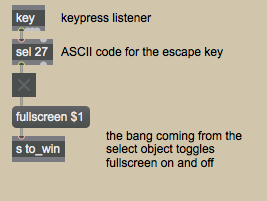
If you look in the patch, we can see clearly how this last trick functions. We've simply used the Max key object in combination with a select object to listen for the escape key (ASCII key code 27). When that key is pressed, a bang is sent from the select object to the toggle, causing it's state to change from 1 to 0 or from 0 to 1 (depending on what it was before it received the bang). This value is sent to the message box labeled fullscreen $1, causing the messages fullscreen 1 and fullscreen 0 to be sent to the jit.window object.
Hooking this message up to a key is particularly clever, because once the window is fullscreen, it's sometimes a little tricky to get back to your patch! By the way, the jit.window object has a useful attribute—fsmenubar—which tells it whether or not to hide the system menu bar when the object is in fullscreen mode. By default, the fsmenubar attribute is set to 1, meaning that the menubar should stay where it is.
Toggling the fullscreen state of the jit.window object with the escape key.
Got It Covered
Most of the time, though, we want to be able to use our patch on one screen, while looking at the output on another. The jit.window object is capable of putting a window on any display attached to your computer (or display device, like a video projector).
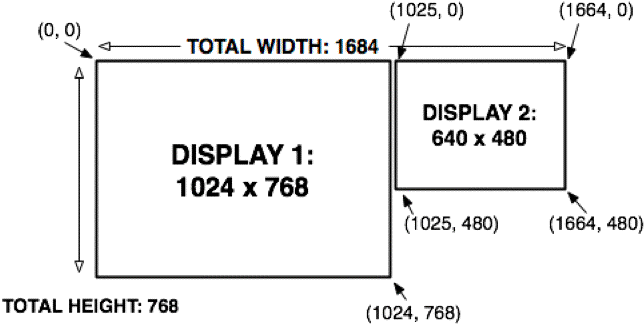
As far as your computer is concerned, once you've attached additional displays in a spanning configuration (that means, the displays aren't mirroring one another), you simply have one large display area. Moving windows to a second screen is simply a matter of knowing the correct coordinates.
A view of a two-monitor system, with coordinates.
Of course, figuring out where your second monitor is located and doing the math is a little bit boring. Luckily, Jitter includes an object, jit.displays, which can figure it all out for you.
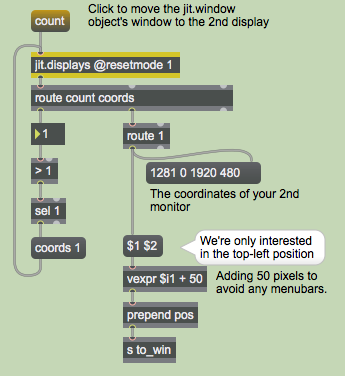
The jit.displays object in action.
Using the jit.displays object to enumerate the number and coordinates of attached monitors is simple. The count message causes the word count, followed by the number of attached displays to be sent from the object's left outlet. In our patch, we're testing to make sure that there are more than one attached display using the > (greater-than) object. If there are, the message coords 1 is sent to the jit.displays object, requesting the coordinates of monitor 1 (monitors are numbered starting at 0—your primary display is typically monitor 0).
Click on the message box labeled count. If you have a second monitor attached to your computer, the jit.window object's window should have appeared on it. By simply using the top-left coordinates of the second display as the basis for a simple calculation (we added 50 pixels to each coordinate to make sure that we avoided any menubars), we were able to send a pos message to the jit.window object and position the window squarely on it.Press the escape key again. The window should have gone into fullscreen mode, but this time, on the second display. The jit.window object figures out which display it's on before entering fullscreen mode, to ensure that the correct area of the screen gets covered.Press the escape key again to disable fullscreen mode.
Of course, the jit.displays object will work with systems comprising more than two displays.
Typically, you'll want to keep a variation of this portion of the patch as part of your performance setup. We've noticed that the position settings for a second (or third) display don't always remain the same from use to use, when connecting different kinds of devices to our computers. Using the jit.displays object to automatically determine the exact position of your attached hardware and move your output window eliminates some of the hassle and worry of working in new venues or with unfamiliar equipment.
A Little Performance Tip
Now that we've mastered the jit.window object, let's turn our attention back to the jit.pwindow object. Although the purpose of this tutorial isn't to offer tips and tricks for improving Jitter's performance, the jit.pwindow object is so often used as a small monitor in live performance settings, that a quick look at its effect on playback speed is worth our time.
Click the cell in the matrixctrl object labeled jit.pwindow to route the video data to the jit.pwindow object. You should see video in both the jit.window object's window and the jit.pwindow object. Compare the framerates (as reported by the jit.fpsgui object) with the jit.pwindow object enabled and disabled. On our computer, we get around 300 frames per second with the jit.pwindow disable and about 110 frames per second with it enabled. With the jit.pwindow object enabled and the jit.window object turned off, we get around 260 frames per second. Your results will vary widely depending on your computer's operating system and hardware.Unlock the patch and open the jit.pwindow object's Inspector.The jit.pwindow object's Inspector
Do you see the checkbox labeled Onscreen in the jit.pwindow object's Inspector? Uncheck it, and compare framerates with both windows active. On our system, we get around 160 frames per second now—nearly 50% faster! Anytime you are using a jit.pwindow object which is smaller than the video being displayed (here, our video is 320x240, and our jit.pwindow is 80x60), you should turn off onscreen mode. It's a simple rule that will get the best possible speed from your performance patch.
Onscreen and offscreen modes use different drawing algorithms to do their work—data is drawn directly to the display in onscreen mode, while offscreen mode draws the data first to an offscreen buffer and then copies it to the display. The algorithm used in onscreen mode doesn't favor downsampling, so the performance is not as good.The Use Onscreen setting in the jit.pwindow object's Inspector is saved with the patch, so it need only be set once. You can set the onscreen attribute directly from Max using messages, as well.
Another strategy for reducing the impact of jit.pwindow objects in your performance patch is to reduce the amount of data being drawn. The Max speedlim and qlim objects are ideal for this purpose, although we're not going to demonstrate their use in this tutorial (the speedlim object is discussed in MIDI tutorial 3).
Summary
In this tutorial, we learned a few strategies for overcoming typical challenges in a performance environment: the appearance settings for the jit.window object; the fullscreen mode; the use of the jit.displays object to sense additional display hardware attached to your computer and autoconfigure the position of a jit.window object's window; and the management of the jit.pwindow object's onscreen drawing mode to improve the performance of your in-patch screens.
Set/query monitor attributesIn-Patcher WindowDisplay data in a Window
 Resizing the
  Toggling the fullscreen state of the
  A view of a two-monitor system, with coordinates.
 The
The 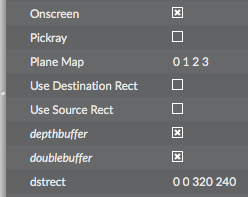 The
The