Recording QuickTime movies
Working with Live Video and Audio Input
Jitter Tutorials
Tutorial 20: Importing and Exporting Single Matrices
This tutorial shows how you can export a single matrix to disk from Jitter. We'll demonstrate the variety of options available, including QuickTime still picture formats and Jitter's own .jxf file format.
In the previous Tutorial, we learned how to save a sequence of matrices as a QuickTime movie—and we can save a single matrix using the same techniques. Since the data that Jitter works with can describe much more than series of images, it makes sense that there should be several additional options for exporting individual matrices.
Import and Export from the jit.matrix object
The jit.matrix object offers two types of single-matrix import/export: QuickTime movie and Jitter binary (.jxf). Both formats permit import and export of a single matrix. We'll discuss both, starting with the movie format.
QuickTime export and import
The QuickTime movie format is identical to the format we learned about in the last tutorial—Recording QuickTime Movies. The only difference is that, in this case, an exported output movie will be exactly one frame long. We can also import a single frame of a movie, regardless of the movie's length. The messages importmovie and exportmovie are used to import and export a single matrix from the jit.matrix object. The exportmovie message conveniently uses the same format as the jit.record object's write message.
In fact, when you use the jit.matrix object's exportmovie message, the jit.matrix object is briefly creating an internal instance of a jit.record object, and sending a write message to it with the arguments you've specified for exportmovie. Although that shouldn't change the way you think about it, it's pretty nifty.
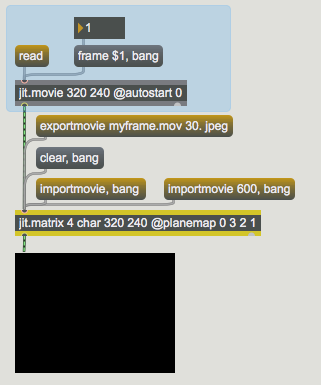 the jit.matrix object’s importmovie and exportmovie messages
Click the message box that says read to load a movie into the jit.movie object. Since we're only interested in a single frame, there's no metro in the patch. You'll also notice that there is a new attribute set for the jit.movie object— @autostart 0. Setting this attribute means that our movie will not begin playing automatically. We can choose a frame of the loaded movie we want to export, using the number box connected to the message box containing the message frame $1, bang.
Why are the colors all messed up? They're messed up because we're using the planemap attribute of jit.matrix to remap the planes of the incoming movie from 0 1 2 3 (alpha, red, green, blue) to 0 3 2 1 (alpha, blue, red, green). We'll see why in a few moments.
Click the message box exportmovie myframe.mov 30. jpeg to export the frame as a QuickTime movie. As with jit.record, we're specifying the frame rate and codec (30. and jpeg). We're also specifying a file name, myframe.mov. The exportmovie message automatically closes the file after writing the frame to it.
To load the single frame we've just exported , we'll use the importmovie message. Since we want to be certain that we're really importing the frame we just exported, we'll clear the jit.matrix object first. Click on the message box that says clear, bang. This message clears the matrix and then outputs it to the jit.pwindow, which should now appear entirely black.
Now, click the message box that says importmovie, bang. A file Dialog Box should appear, and you should locate and read myframe.mov. The movie should have been saved in the same folder as the Tutorial patch. If you can't find it there, use the Finder's Find... command to locate the file on your disk drive. The frame you just exported should now be back in the jit.pwindow. The importmovie message takes an optional first argument which specifies a file name.
You're probably wondering what that second importmovie message is for. If you try to import a multi-frame movie into jit.matrix, the object assumes that you want the first frame, unless you specify a time value that you'd prefer. In this example, we've asked for time value 600 whichis one second in from the beginning of a normal QuickTime movie—remember from Tutorial 4 that most QuickTime movies use a timescale of 600, which means they have 600 time values per second.
Try reading another QuickTime movie by clicking on the message box importmovie 600, bang. The jit.pwindow should now be showing a frame from one second into that movie. You'll notice that the colors in the frame are not switched around this time. This is because we are importing an image matrix directly into the object. Since the jit.matrix object's planemap attribute only affects matrices that arrive via its inlet, no plane remapping occurred.
the jit.matrix object’s importmovie and exportmovie messages
Click the message box that says read to load a movie into the jit.movie object. Since we're only interested in a single frame, there's no metro in the patch. You'll also notice that there is a new attribute set for the jit.movie object— @autostart 0. Setting this attribute means that our movie will not begin playing automatically. We can choose a frame of the loaded movie we want to export, using the number box connected to the message box containing the message frame $1, bang.
Why are the colors all messed up? They're messed up because we're using the planemap attribute of jit.matrix to remap the planes of the incoming movie from 0 1 2 3 (alpha, red, green, blue) to 0 3 2 1 (alpha, blue, red, green). We'll see why in a few moments.
Click the message box exportmovie myframe.mov 30. jpeg to export the frame as a QuickTime movie. As with jit.record, we're specifying the frame rate and codec (30. and jpeg). We're also specifying a file name, myframe.mov. The exportmovie message automatically closes the file after writing the frame to it.
To load the single frame we've just exported , we'll use the importmovie message. Since we want to be certain that we're really importing the frame we just exported, we'll clear the jit.matrix object first. Click on the message box that says clear, bang. This message clears the matrix and then outputs it to the jit.pwindow, which should now appear entirely black.
Now, click the message box that says importmovie, bang. A file Dialog Box should appear, and you should locate and read myframe.mov. The movie should have been saved in the same folder as the Tutorial patch. If you can't find it there, use the Finder's Find... command to locate the file on your disk drive. The frame you just exported should now be back in the jit.pwindow. The importmovie message takes an optional first argument which specifies a file name.
You're probably wondering what that second importmovie message is for. If you try to import a multi-frame movie into jit.matrix, the object assumes that you want the first frame, unless you specify a time value that you'd prefer. In this example, we've asked for time value 600 whichis one second in from the beginning of a normal QuickTime movie—remember from Tutorial 4 that most QuickTime movies use a timescale of 600, which means they have 600 time values per second.
Try reading another QuickTime movie by clicking on the message box importmovie 600, bang. The jit.pwindow should now be showing a frame from one second into that movie. You'll notice that the colors in the frame are not switched around this time. This is because we are importing an image matrix directly into the object. Since the jit.matrix object's planemap attribute only affects matrices that arrive via its inlet, no plane remapping occurred.
Jitter binary export and import
Jitter offers its own binary format for single-matrix export, called .jxf. The Jitter binary format is simpler to use than the QuickTime format, and .jxf stores your data without any of the data losses associated with the various codecs you need to use with the QuickTime format. Additionally, the .jxf format supports matrices of all types, dimensions and planecounts, whereas the QuickTime format is only capable of storing 4-plane char matrices (images).
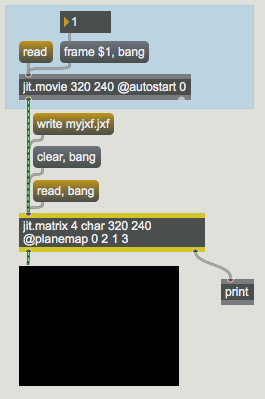 using .jxf format with the jit.matrix object
The patch shown above uses the Jitter binary format, which is selected using the write and read messages. While it is very similar to the previous example patch, there are some important differences:
The write message only takes a single argument that specifies the name of the output file. Since the .jxf format is always a single matrix of uncompressed data, we don't need any other arguments.
The read message doesn't need a time argument (since a .jxf file will only have a single matrix in it). Like the importmovie message, read will take an optional argument for the file name.
The read and write messages cause the jit.matrix object to send confirmation messages out the object's right outlet. We've connected that outlet to a print object, so you can see those messages in the Max Console.
Both techniques described in this section are available to the jit.matrixset object as well, and function in similar ways.
Summary
Jitter offers several methods for importing and exporting single matrices from and to disk. The jit.matrix object (and the jit.matrixset object, not demonstrated in this chapter) allow single matrices to be saved as single-frame movies, using the same parameters as the jit.record object's write message. The jit.matrix and jit.matrixset objects also support the Jitter binary (.jxf) format— an uncompressed format specially suited to Jitter matrices.
The Jitter Matrix!
Apply binary or unary operators
In-Patcher Window
Play or edit a movie
Record a movie
Convert Max symbol to Jitter string matrix
Convert Jitter string matrix to Max symbol
Read and write a matrix as an ASCII text file