Image RotationFeedback Using Named MatricesJitter Tutorials
Tutorial 16: Using Named Jitter Matrices
In this tutorial we'll learn how to use the name attribute of the jit.matrix object to write matrix data from multiple sources into the same matrix. We'll also look at how to scale the size of matrices when they are copied into a new matrix, and how to use the Max low-priority queue to de-prioritize Max events in favor of more time-consuming tasks .
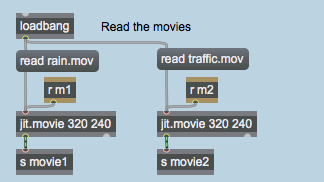
The tutorial patch is divided into five colored regions. The middle (light blue) region contains two jit.movie objects. A loadbang object reads two movies (rain.mov and traffic.mov) into the jit.movie objects when the patch is opened:
Reading in the movies
Unlike the tutorial patches we've looked at before, the jit.movie objects in this patch use send and receive objects to communicate with the rest of the patch. The receive objects named m1 and m2 forward messages to the two jit.movie objects. The output matrices of the two objects are then sent (using send objects) to receive objects named movie1 and movie2 elsewhere in the patch.
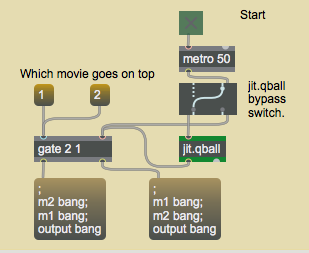
The yellow region at the top of the patch contains the metro object that drives the Jitter processes in the patch:
The metro object drives one of the two message boxesClick the toggle box to start the metro. The three jit.pwindow objects in the patch will start to display an image.
Order of Importance
The metro object goes through a Ggate object and an object called jit.qball (about which we will have something to say later) into a gate object. The bang messages sent by the metro are routed by the gate to one of two message boxes. Our final output matrix (in the jit.pwindow at the bottom of the patch) will change depending on which message box gets a bang.
Click the two message boxes attached to the left inlet of the gate (1 and 2). Notice how the jit.pwindow at the bottom changes:The final output matrix changes depending on the message ordering of the patch.
The two message boxes both send bang messages to the same three named receive objects (m1, m2, and output). The difference between the two is the order in which they send the messages. The lefthand message box (driven by the metro when the gate is set to 1) sends the first bang to the jit.movie object (with the rain movie). Finally, the jit.matrix object at the bottom of the patch receives a bang, causing our final matrix to be sent out. The righthand message box (driven by the metro when the gate is set to 2) reverses the order of the two bang messages driving our jit.movie objects (the left jit.movie outputs a matrix first, followed by the right jit.movie object).
The order in which these messages occur only becomes relevant when we look into what happens between the two jit.movie objects and the final jit.pwindow object.
Important Note: If you are ever unsure about the order in which things are happening in your Max patch, you can do a trace of the patch to see the way in which your patch executes. If you set a break-watchpoint in a patchcord you can step through the patch with the Auto Step command to see how it executes. However, this will not work well with a metro running, because the metro bangs will keep restarting the process. It is best to add a button at the metro location and use it for debugging.
What's in a Name?
Once our jit.movie objects receive their bang messages, they output a matrix to the send objects below them, which in turn pass their matrices over to receive objects named movie1 and movie2. The receive objects (in two identical regions at the right of the patch) are connected to jit.pwindow objects as well as two namedjit.matrix objects:
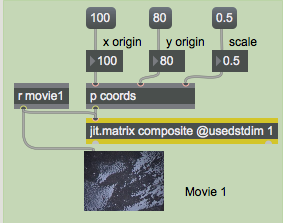
The named jit.matrix object
Both of the jit.matrix objects at the right of the patch (as well as the jit.matrix object at the bottom of the patch above our final jit.pwindow) have a name. The name attached to all three of these objects is composite. The result of this is that all three of these jit.matrix objects share the same matrix data, which is contained in a Jitter matrix called composite.
Once we know that our two jit.movie objects write data into the same Jitter matrix (via two separate jit.matrix objects sharing the same name) we can understand why the ordering of the bang messages is important. If the left jit.movie sends out its matrix first, it writes data into the composite matrix, followed by the right jit.movie, which writes data into the same matrix. If the two matrices write to any cells in common (see below), the matrix that gets there last will overwrite any data that was in those cells before.
The Destination Dimension
The two jit.matrix objects on the right of the tutorial patch have their usedstdim attribute set to 1. This allows us to scale the matrices sent by our jit.movie objects so that they only write to a certain region of the composite Jitter matrix.
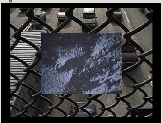
Play around with the number boxes labelled x origin, y origin, and scale connected to the two subpatchers labelled p coords. Notice how you can move and resize the two images from the jit.movie objects in the composite matrix.Picture within a picture
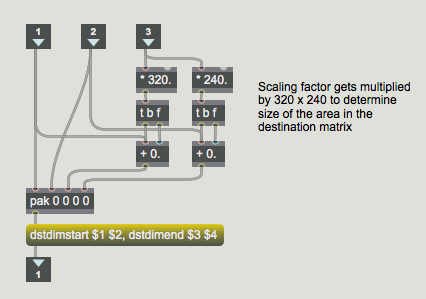
The subpatches p coords contain identical helper patches to format the dstdimstart and dstdimend attributes for the jit.matrix objects. These attributes specify the upper left and lower right coordinates, respectively, to use when copying data into our composite Jitter matrix. The usedstdim attribute simply tells the jit.matrix object to use those attributes when copying data. When usedstdim is set to 0, the incoming matrix is scaled to fill the entire matrix referred to by the jit.matrix object.
Scaling the input matrices before the are written into our shared matrix
The three numbers that we send into the subpatches get formatted by the Max objects inside to generate a list that describes the upper left and lower right areas of the output matrix which we want to fill with our input matrix. The message box before the outlet uses $ substitution to replace the relevant arguments for the attributes with numbers from the list.
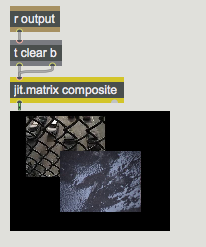
The last thing that happens after our two matrices have been written into the composite matrix is that a bang is sent to the receive object named output:
The final result
The region at the bottom of the tutorial patch contains a third named jit.matrix object. The bang sent by the metro goes through a trigger object that sends a bang to the jit.matrix (causing it to output its matrix to the jit.pwindow) followed immediately by a clear message. The clear message erases (zeroes) all the cells in the Jitter matrix named composite. If we didn't clear the matrix, changing the dstdimstart and dstdimend attributes of any of the jit.matrix objects could result in cells left over from a previous output location of our movies.
Jumping the Queue
The jit.qball object at the top of the patch provides an invaluable service in the event that Max can't keep up with our demands. The metro object (which is sending out bang messages every 50 milliseconds) is driving three separate operations (writing the two matrices from the jit.movie objects into our named Jitter matrix, as well as displaying the data and clearing the matrix so we can start over). The jit.matrix object writes data into its internal Jitter matrix (in this case our named composite matrix) in a way that allows it to be usurped by a subsequent message. It also allows other Max events that are scheduled at a higher priority to happen while it works on a task. This makes it possible to display the matrix (or write more data into it) before the previous operation has finished, causing flicker and other unexpected results. The jit.qball object places messages input into the object at the back of Max's low priority queue where they too can be usurped by another message. This way, if jit.qball gets a bang from the metro object before all the current Jitter tasks are complete, it will wait until everything else in the low priority queue is finished before sending out the bang. Similarly, if another bang comes along before that first bang has been sent (i.e. if it takes more than 50 milliseconds for the rest of the patch to do everything), the first bang will be usurped (jettisoned) in favor of the second. This allows you to set a maximum hypothetical rate of events in a Max patch without having to worry about events accumulating too rapidly for the objects in the patch to keep up.
Click on the Ggate object labeled jit.qball bypass switch so that the output of the metro object bypasses the jit.qball object. The composite image in the jit.pwindow at the bottom will start to flicker, indicating that messages are arriving out of order.
Normally, sending a bang to a Jitter object will usurp an already pending event in that object (e.g. a bang that has already arrived but hasn't been dealt with yet by the object). However, the jit.qball object gives us this kind of control over multiple chains of Jitter objects, automatically usurping events ("dropframing") to guarantee that messages arrive in the right order.
Note:jit.qball has been supplanted by qmetro in most applications. Qmetro is a metro object with the jit.qball mechanism built in.
Summary
By giving a single name to multiple jit.matrix objects, you can write into and read from a common Jitter matrix in different parts of your patch. You can scale a Jitter matrix while copying it into the internal matrix of a jit.matrix object by using the dstdimstart and dstdimend attributes and by setting the usedstdim attribute to 1. The jit.qball object allows you to de-prioritize Max events by placing them in the low-priority queue where they can be usurped by subsequent events if there isn't enough time for them to execute.
The Jitter Matrix!In-Patcher WindowConvert messages at scheduler time to low priorityPlay or edit a movie
 Reading in the movies
 The
The 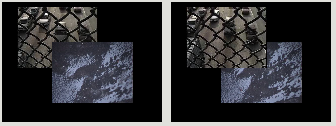 The final output matrix changes depending on the message ordering of the patch.
 The named
  Picture within a picture
 Scaling the input matrices before the are written into our shared matrix
 The final result