Math Operations on a Matrix
ARGB Color
Jitter Tutorials
Tutorial 4: Controlling Movie Playback
This tutorial expands on what we've learned thus far about playing back movies in Jitter. We'll learn how to get some useful information about the movie that you're playing, as well as how to manipulate the playback of the movie by changing its speed, volume, and loop points.
The two Jitter objects in this patch should already be familiar to you: jit.movie and jit.pwindow. The rest of the patch will let you experiment with changing the playback behavior of the movie you have loaded into the jit.movie object.
The left side of the patch should seem very familiar to you from the very first tutorial:
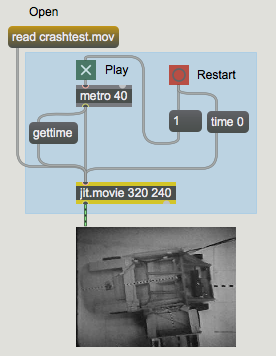 Open and play the movie.
Open the file crashtest.mov by clicking the message box that says read crashtest.mov.
Open and play the movie.
Open the file crashtest.mov by clicking the message box that says read crashtest.mov.
The movie clip should begin playing as soon as it is read into the jit.movie object. Since this movie has a soundtrack, you should begin to hear some music as soon as the movie is loaded. The movie soundtrack will come out of computer's built-in sound system, not MSP. If you do not wish to hear the soundtrack, you can change the number above the message box that says vol $1 to 0.
You won't see anything in the jit.pwindow because, even though the movie is playing, the jit.movie object needs a bang message to send a matrix out to the jit.pwindow. Start the metro object by clicking on the toggle box connected to its inlet. You will see the movie's image appear in the jit.pwindow object. Don't worry about the gettime message yet; we'll get to that below.
Obtaining Some Information About the Movie
When a jit.movie object opens a new movie, it reads in a lot of information (contained in the movie's header) about the movie, including how long it is, how many frames of video are in the movie, and how fast it is meant to be played. We will use this metadata to control the movie's playback.
Important note: unlike many Jitter attributes, which are set either by you or the object itself, many attributes used by jit.movie are dependent on the current movie file. Different movie files will generate different settings for many of the attributes discussed in this tutorial.
The first thing we want to do with this movie is read the metadata attributes. It can be retrieved by sending get messages to jit.movie. We then parse the messages the object sends out its rightmost outlet in response. The information we need is the frame rate, the time scale (how many "QuickTime time units" in a second), the duration (in QuickTime units), the playback rate, and the volume. This is all gathered by a message box with getfps, gettimescale, getduration, getrate, getvol.
When you tell a jit.movie to open a movie for playback (by sending it the read message), the object sends a message out its right outlet to tell you that it has found your movie and understood how to play it. If you were to connect a print object to the right outlet of the jit.movie in the patch and reload the movie in the patch, you would see the following printed in the Max Console: read crashtest.mov 1. In this patch, there is a route object connected to the right outlet of jit.movie. That route will catch a read message and pass it to an unpack and select that will trigger the get message after a successful load. If for some reason the object can't locate the crashtest.mov file, you will see a number other than 1 after the name of the file, and no request will be made.
 Automatically querying the jit.movie object.
In addition to catching the read message the route object distributes the movie information as it arrives. Jitter attributes are always output by objects in the same format that you would set them with in your patch: the name of the attribute followed by whatever information the object needs to set that attribute.There are number boxes attached to the route outlets to display the requested values. We don't know what those mean yet, but this mechanism will display the attributes every time we successfully load in a new movie into the jit.movie object.
Starting, Stopping, and Slowing Down
 Some simple movie playback controls
The top of the tutorial patch contains some controls to change the playback behavior of the jit.movie object. Sending a stop message to jit.movie will freeze the movie's playback at the current point in the movie. Sending a start message will resume playback where you last left off. Any soundtrack that exists in the movie file will stop playing when the movie's playback is halted. Stopping and starting the movie has no effect on the jit.movie object's matrix output, which is still controlled by the metro object. If you stop the movie with the metro on, you will still receive a new matrix at the rate of the metro object (in this case, 25 times per second), even though all the matrices will be the same.
Changing the rate of the movie will change the speed at which it plays back its video and audio content. Positive rate values will make the movie go forward, with a value of 1 signifying normal playback speed. Negative values will make the movie go backwards. A rate of 0 will stop the movie. The jit.movie object takes a floating-point number as the argument to its rate attribute, so a value of 0.5 will make the movie play at half speed, and a value of -2.3 will make the movie play backwards at a bit more than double speed. If you play around with this value, you will note that the soundtrack will speed up, slow down, and play backwards to remain in sync with the video. Once the movie reaches its last frame (or first frame, if you're playing it backwards), it will loop to the opposite end of the file. This behavior can be changed by setting the loop attribute of the jit.movie object with a value of 0 (no looping), 1 (regular looping), or 2 (palindrome looping).
The vol attribute controls the volume (loudness) of any soundtrack component the movie has. A value of 1 equals full volume, and a value of 0 will turn the sound off.
In this patch, both the rate and the vol attributes are initialized by the message box in the middle of the patch when the film is loaded. This way they will reflect the values stored in each new movie.
Time is on My Side
Note: While the information in the section below is still relevant, updates to the jit.movie object provide simpler alternatives for querying the time and duration state of a loaded movie file. To get the movie length in seconds use the seconds or milliseconds attributes. To get or set the current playback time in seconds use the time_secs attribute, or in milliseconds use the time_ms attribute and for a normalized position value between 0 and 1 use the position attribute. To set the loop points in seconds or milliseconds use looppoints_secs or looppoints_ms.
The first three attributes we queried, duration, timescale, and fps, tell us about how the movie file deals with timing. The duration attribute tells us the total length of the movie. This value is not expressed in milliseconds or frames, but in QuickTime time units. The actual length of each time unit depends on the timescale of the movie. The movie's timescale is the timing resolution of the movie per second. Dividing the duration of a movie by its timescale will tell you the approximate length of the movie, in seconds. Our crashtest.mov file, for example, has a duration of 2836 time units and a timescale of 600. The movie should run for about 4.73 seconds. If we want to move two seconds into the movie, we could set the jit.movie object the message time 1200 (1200 time units divided by a timescale of 600 units/second gives us 2 seconds).
The fps, or frames per second, of a movie tells us how many individual video images are shown every second. The higher the fps of a movie, the smoother the apparent motion of the movie will be (assuming, that is, that the individual frames are all in some way unique). Some common fps rates are 15, 24, 29.97, and 30. Our movie file in this example runs at 15 frames per second, which works out to a new frame of video every 40 time units, or about every 66.7 milliseconds. If we divide the duration of crashtest.mov by the number of time units per frame in the movie, we can determine that the movie file has 70 frames. If we wanted to, we could get the total number of frames in the movie by querying the jit.movie object with the getframecount message, but then we wouldn't get to do the fun math!
Scrubbing and Looping
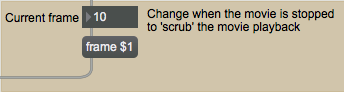 Displaying and setting the current playback frame
The area at the bottom of the patch contains two controls for further manipulating the movie's playback. The number box on the left displays the frame that the movie is currently playing. This value is being updated by the gettime message sent into the jit.movie object by the metro object at the top of the patch; each time a new frame is output the time is updated. If you stop the movie's transport (by sending jit.movie a stop message), you can "scrub" through the movie by dragging on the number box. The movie will jump to the frame specified as an argument to the frame message.
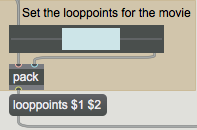 Setting loop points in a movie
Loop points (pairs of time values which specify the beginning and end of a loop) can be sent to a jit.movie object by setting the looppoints attribute with two integer arguments. The rslider in the tutorial patch lets you select regions of the movie that the jit.movie object will loop between. The size of the rslider has been set to the duration of the movie through the attribute query we performed when the movie was loaded. You can reset loop points by sending jit.movie a looppoints message with no arguments (an example of this is at the top of the patch, along with a query message that highlights the entire rslider).
Summary
The jit.movie object offers a number of simple attributes that allow you to change the way QuickTime content is played. You can stop and start movie playback with those messages. The rate attribute lets you change the speed and direction of movie playback. You can control the volume of a movie's soundtrack with the vol attribute.
You can get important information about the current movie loaded into the jit.movie object by querying attributes such as duration, timescale, and fps. You can go to specific frames in a movie with the frame message, and you can set and retrieve looppoints for the movie. You can query the current time position of a movie by sending jit.movie a gettime message.
More powerful functions, such as editing and saving movies, can be accomplished and will be discussed in later tutorials.
Play or edit a movie
send bangs at regular intervals
Combine numbers and symbols into a list
Selectively pass the input out a specific outlet
Break a list up into individual messages