Composing the Screen
Create a Matrix
Jitter Tutorials
Tutorial 1: Playing a Movie
This first tutorial demonstrates one of the simplest yet most useful tasks you can perform with Jitter: playing a movie in a window.
There are two Jitter objects in this patch: jit.movie and jit.window. The jit.window object automatically opens a window on your computer screen. The jit.movie object allows you to open an existing movie, and begins to play it.
Click on the message box containing the message read countdown.mov. This causes the jit.movie object to open the movie file countdown.mov and begin reading from it.
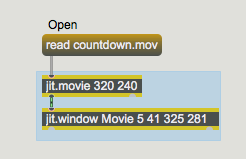 The read message opens a movie file.
By default a jit.movie will begin playing a movie as soon as it opens it. (Alternatively, you can alter that behavior by sending a jit.movie object an autostart 0 message before opening the file, but for now the default behavior is fine.) Notice, however, that even though we've said that the jit.movie object is playing the movie, the movie is not being shown in the Movie window. Here's why:
Each object in Jitter does a particular task. The task might be very simple or might be rather complicated. What we casually think of as "playing a movie" is actually broken down by Jitter into two tasks:
1. Reading each frame of movie data into RAM from the file on the hard disk
2. Getting data that's in RAM and showing it as colored pixels on the screen.
The first task is performed by the jit.movie object, and the second by the jit.window object. But in order for the jit.window object to know what to display, these two objects need to communicate.
How Jitter Objects Communicate
Important Concept: The most important thing that Jitter objects communicate to each other is a name, referring to a matrix—a place in memory where data is stored. (We'll explain the meaning of the word "matrix" in more detail in the next tutorial chapter.) Jitter objects output a message that only other Jitter objects understand. That message is the word jit_matrix followed by a space and the name of a matrix where data is stored. This message is communicated from one Jitter object to another through a patch cord in the normal Max manner. (But, just as MSP objects' patch cords look different from other Max patch cords, the patch cords from Jitter obejcts' outlets that send the jit_matrix message have their own unique look.) The receiving Jitter object receives the message in its inlet (most commonly the left inlet), gets the data from the specified place in memory, modifies the data in some way, and sends the name of the modified data out its left outlet to all connected Jitter objects. In this way, tasks are performed by each object without necessarily knowing what the other objects are doing, and each object gets the data it needs by looking at the appropriate place in memory. Most Jitter objects don't really do anything until they get a jit_matrix message from another Jitter object, telling them to look at that matrix and do something with the data there.
In many cases a Jitter object will generate a unique name for its matrix on its own. In other cases, it is possible (and even desirable) to tell an object what name to use for a matrix. By explicitly naming a matrix, we can cause objects to use that same memory space. You will see examples of this in future tutorial chapters.
Causing Action by Jitter Objects
What causes one Jitter object to send a jit_matrix message to another object? Most Jitter objects send out a jit_matrix message when they receive the message outputmatrix or bang. (These two messages have the same effect in most Jitter objects.) The other time that an object sends out a jit_matrix message is when it has received such a message itself, and has modified the data in some way; it then automatically sends out a jit_matrix message to inform other objects of the name of the matrix containing the new data.
To restate the previous paragraph, when an object receives a jit_matrix message, it does something and sends out a jit_matrix message of its own. When an object receives outputmatrix or bang, it sends out a jit_matrix message without doing anything else.
So, in our example patch, the jit.movie object is "playing" the movie, constantly storing the current frame of video, but the jit.window object will only display something when it receives a jit_matrix message from the jit.movie object. And that will only happen when jit.movie receives the message bang (or outputmatrix). At that time, jit.window will display whatever frame of video happens to be currently playing in the movie (that is, the frame that's currently stored by jit.movie).
In order to make jit.window update its display at the desired rate to show a continuously progressing video, we need to send the message bang to jit.movie at that rate.
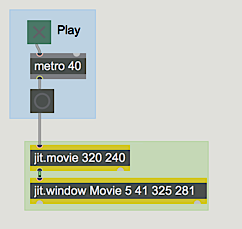 The movie is playing in jit.movie,
but we need to send it a bang each time we want to display a frame.
Click on the toggle object marked "Play" to start the metro object. This will send out bang at the rate of 25 times per second (every 40 milliseconds). That should be fast enough to display every frame of this video. As long as the bang messages continue, you will see the movie displayed in the Movie window.
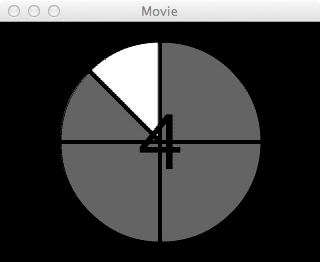 jit.window displays the contents of a matrix: in this case a frame of a movie.
Click on the toggle to stop the metro. The jit.window object stops updating the Movie window, so you will now just see a still image of whatever frame was last displayed. The movie is still playing—and jit.movie is still updating its memory frame-by-frame—but jit.window is now oblivious because jit.movie is no longer sending messages.
You can verify that the movie is still progressing by clicking on the button object just below the metro. This will cause jit.movie to send a jit_matrix message to jit.window, which will update the Movie window with the current frame. If you do this a few times, you will see that the movie has progressed in between clicks of the mouse. (The movie is a ten-second countdown, playing in a continuous loop.)
jit.window displays the contents of a matrix: in this case a frame of a movie.
Click on the toggle to stop the metro. The jit.window object stops updating the Movie window, so you will now just see a still image of whatever frame was last displayed. The movie is still playing—and jit.movie is still updating its memory frame-by-frame—but jit.window is now oblivious because jit.movie is no longer sending messages.
You can verify that the movie is still progressing by clicking on the button object just below the metro. This will cause jit.movie to send a jit_matrix message to jit.window, which will update the Movie window with the current frame. If you do this a few times, you will see that the movie has progressed in between clicks of the mouse. (The movie is a ten-second countdown, playing in a continuous loop.)
To summarize, jit.movie is continually reading in one video frame of the movie, frame by frame at the movie's normal rate. When jit.movie receives a bang, it communicates the location of that data (that single frame of video) to jit.window, so whatever frame jit.movie contains when it receives a bang is the data that will be displayed by jit.window.
Arguments in the Objects
The jit.movie object in this tutorial patch has two typed-in arguments: 320 240. These numbers specify the horizontal and vertical (width and height) dimensions the object will use in order to keep a single frame of video in memory. It will claim enough RAM to store a frame with those dimensions. So, in the simplest case, it makes sense to type in the dimensions of the movie you expect to read in with the read message. In this case (since we made the movie in question ourselves) we happen to know that the dimensions of the movie countdown.mov are 320x240.
If we type in dimension arguments smaller than the dimensions of the movie we read in, jit.movie will not have claimed enough memory space and will be obliged to ignore some of the pixels of each frame of the movie. Conversely, if we type in dimension arguments larger than the dimensions of the movie we read in, there will not be enough pixels in each frame of the movie to fill all the memory space that's been allocated, so jit.movie will distribute the data it does get evenly and will fill its additional memory with duplicate data.
The jit.window object has five typed-in arguments:
Movie 5 41 325 281. The first argument is a name that will be given to the matrix of data that jit.window displays. That name will also appear in the title bar of the movie window. It can be any single word, or it can be more than one word if the full name is enclosed between quote characters. The next two arguments indicate the x,y screen coordinates of the upper-left corner of the display region of the movie window, and the last two arguments provide the x,y coordinates of the lower-right corner of the display region. (Another way to think of these four numbers is to remember them as the coordinates meaning "left", "top", "right", and "bottom".) We have chosen these particular numbers because a) they describe a display region that is 320x240 pixels, the same size as the movie we intend to display, and b) when we take into account the dimensions of the window borders, title bar, and menu bar that the OS imposes, the entire window will be neatly tucked in the upper-left corner of our useable desktop. (It's possible to make the window borders and title bar disappear with a border 0 message to jit.window, but the default borders are OK for now.)
We have typed the value of 40 in as an argument to metro to cause it to send out 25 bang messages per second. The movie actually has a frame rate of exactly 24 frames per second, so this metro will trigger the jit.movie object frequently enough to ensure that every frame is made available to jit.window and we'll get to see every frame.
The jit.movie object actually understands many more messages besides just bang (way too many to try to explain here). In the upper-right corner of the Patcher window, we've included an example of one more message, simply to demonstrate that the progress of the movie can be controlled in jit.movie independently of the rate at which the metro is sending it bang messages. The message time, followed by a number, causes jit.movie to jump immediately to a specific time location in the movie.
Click on the button object labeled "Restart". This sends a message of time 0 to jit.movie. causing it to jump to the beginning of the movie, and then sends a 1 message to the toggle to start the metro and begin displaying the movie.
To play a movie, use the jit.movie object to open the file and read successive frames of the video into RAM, and use the jit.window object to display the movie in a separate window. Use typed-in arguments to specify the dimensions of the movie, and the precise coordinates of the display area on your screen.
Summary
Jitter objects communicate the information about a particular frame of video by sending each other the name of a matrix—a place in memory where that information is located. When a Jitter object gets a matrix name, it performs its designated task using the data at that location, then sends out the name of the modified data to other Jitter objects. Almost all Jitter objects send out a name (in a jit_matrix message) when they receive the message bang (or outputmatrix). Thus, to show successive frames of a video, send bang messages at the desired rate to a jit.movie object connected to a jit.window object.
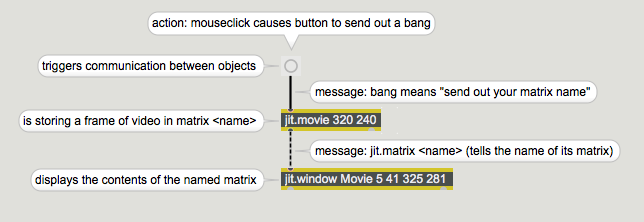 Tracing the messages and roles of each object
Play or edit a movie
Display data in a Window
send bangs at regular intervals
Tracing the messages and roles of each object
Play or edit a movie
Display data in a Window
send bangs at regular intervals